What This Chapter Helps You Do
This chapter helps you start Relay, read the first screen like an operator, and check the local controls before real business work enters the app.
The Operator Story
Maya runs Northstar Automation Studio. She has client work in motion, a support reply waiting for review, a renewal workflow still active, and one research task that already failed once. She does not need a product tour. She needs to know what is running, what is waiting, what is safe to touch, and what settings will govern the next run.
That is the first job Relay must do for an SMB operator. It should not start as an empty chat box or a pile of menus. It should open as a local cockpit with named work, visible state, and clear controls.
When you open Relay for the first time, do not click around at random. Start with a short trust check. Confirm that the app opened from the command you ran. Read the Home screen before you start more work. Then open Settings and check the license and runtime state. This habit matters because Relay can run workflows, route tool approvals, record usage, and publish local business data through pack-backed apps.
The screenshots in this guide use a synthetic workspace. The names are not private customer data. They exist so you can learn the product with work that feels real: Northstar Automation Studio, Harbor & Field Advisors, Brightline Books, CivicSpring Foundation, and Studio Vale.
What This Part Of Relay Is For
Relay runs as a local web app. Your work state lives in a local SQLite database. You can use Relay for customer work, tasks, workflows, tables, packs, and agent runs without sending your business records to Orionfold.
That local-first model is useful only if you know which local state you are looking at. A founder may have one workspace for real work and another for demos. An agency may test packs in a seeded data directory before running client work. An admin may bind Relay to a local network for a team review. Each case needs the same opening question: which instance is this, and what is it allowed to do?
The first Relay session should prove four things:
- Relay opened from the local command.
- The Home screen shows the work you expect.
- Settings shows license, runtime, and trust controls.
- Navigation gives you fast paths to the next useful screen.
Home answers, “What is happening?” Settings answers, “What rules apply?” Treat those two screens as a pair.
Walk The Screen Like An Operator
Start Relay from your terminal:
npx orionfold-relayOpen the local URL that Relay prints. In a normal local setup, this is a loopback address. If you bind Relay to a network hostname, read the warning copy first. A network bind can expose the app to other devices on that network.
When the app opens, read the shell from top to bottom. The top chrome shows version, connection state, and high-level controls. Relay uses a two-tier top navigation bar. The first tier holds the product-area sections: Home, Packs, Compose, Data, and Observe. When you pick a section, the second tier shows that section’s screens. The Home section’s row gives fast access to Dashboard, Tasks, Inbox, and Chat.
What you should notice:
- The Home screen loads inside the Relay shell.
- The top nav sections are Home, Packs, Compose, Data, and Observe. Compose holds Projects, Workflows, Blueprints, Agents, and Presets. Data holds Customers, Schedules, Documents, Tables, and Schemas. Observe holds Monitor and Cost & Usage.
- Settings is a gear icon in the top-right controls, not a section.
- The main screen shows live local data, not a public cloud account.
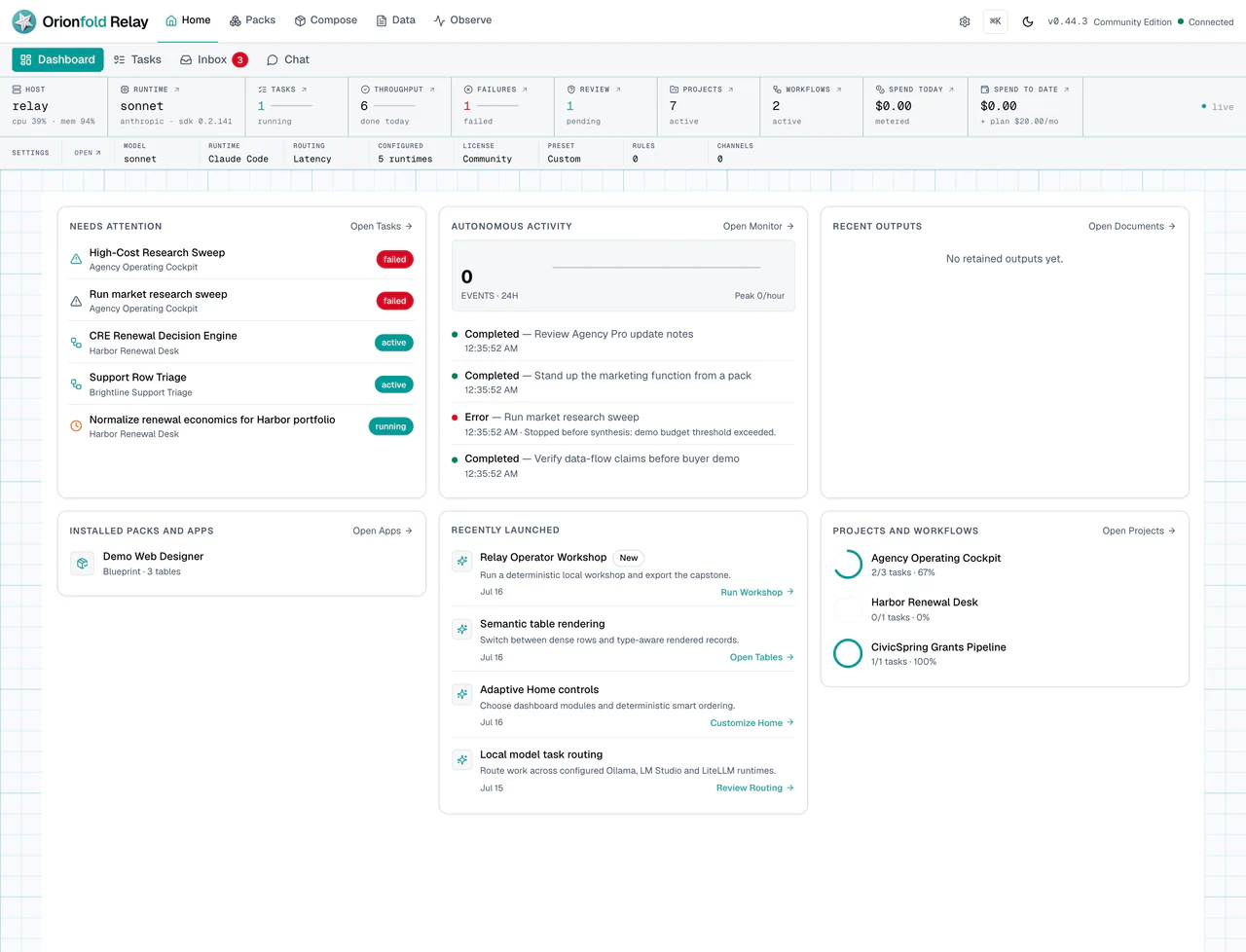
This figure is the opening operating picture. The dashboard puts Needs attention, Autonomous activity, and Recent outputs in a stable top row. The cards below use a responsive masonry layout so shorter modules do not leave large empty gaps on wider screens. Each card action names the screen it opens, such as Tasks, Monitor, or Documents.
Read the content, not only the card count. Needs attention ranks failed, active, queued, paused, and draft work so the next operator decision stays visible. Autonomous activity turns recent events into readable summaries instead of exposing raw provider payloads. Recent outputs points to retained documents and task results. Recently launched provides direct links to new capabilities such as the Operator Workshop and semantic table views.
The remaining modules depend on local state and your settings. Installed Packs and apps, project progress, provider readiness, pricing coverage, activation progress, and an active workshop can appear when relevant and enabled. Smart ordering uses deterministic local signals such as urgency, recent activity, failures, and recency. It does not ask a model to rearrange the page.
Use the Home screen to answer four questions:
- What needs attention?
- Which tasks or workflows are active?
- Which retained outputs or recent launches deserve review?
- Where can I jump next?
- Does anything look stale or blocked?
If a page is empty, Relay should show a clear empty state. If work failed, it should remain visible. If a workflow waits for a person, the next useful screen should be Inbox, not another Run button.
Run The Work Carefully
Before you run new work, open Settings. Start with the summary. This is where Relay shows the local instance controls that govern the rest of the product.
What you should see:
- Settings summary gives a quick account of the local instance.
- License shows saved license state and pack access.
- Runtime shows which model paths Relay can use.
- Dashboard lets you show or hide Home modules, control smart ordering, and restore defaults.
- Anchors and panels should move you to the right setting without losing context.
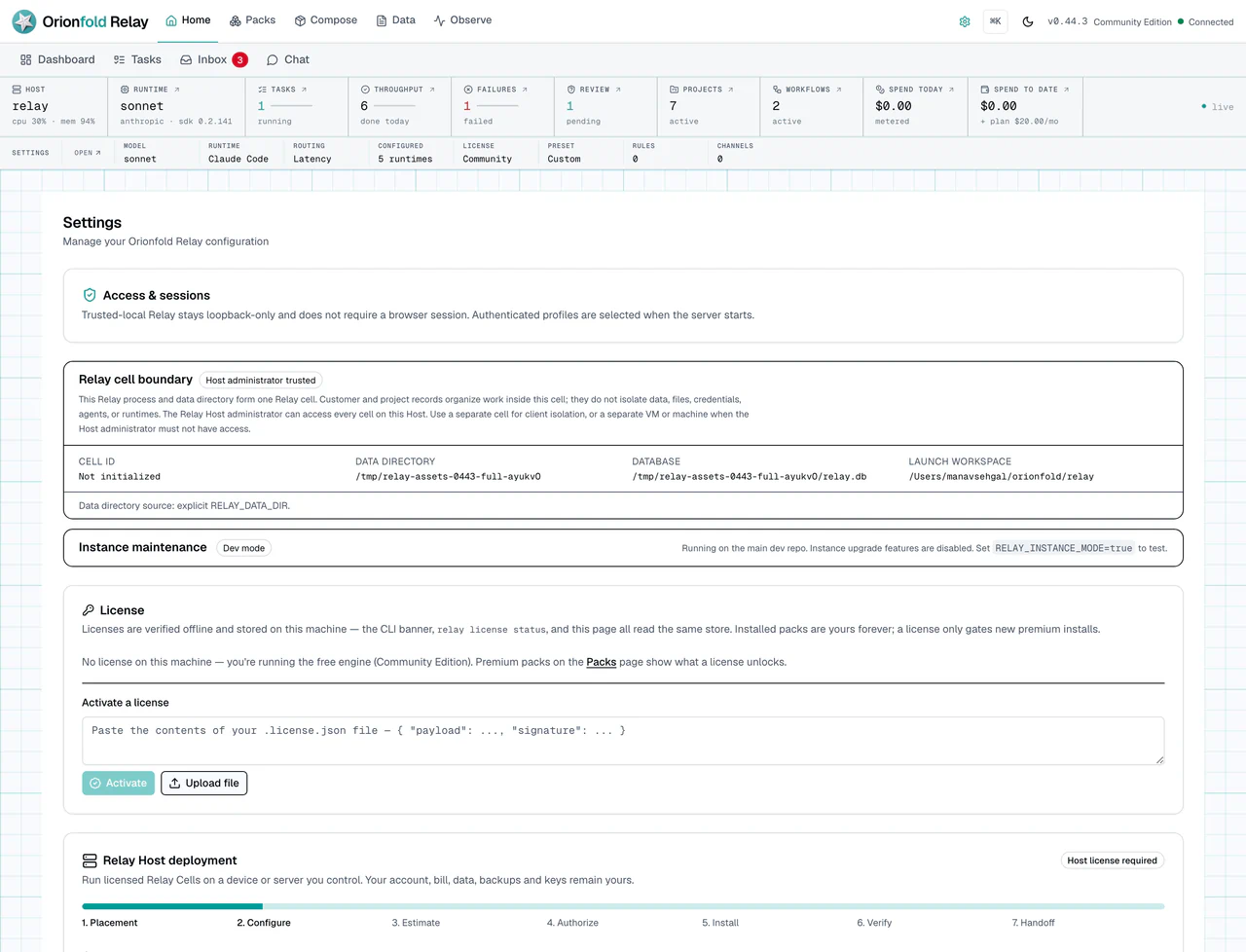
The Settings summary changes the question from “what is happening” to “what rules apply?” In a real workspace, this is where you check dev mode, license state, runtime configuration, budget controls, permissions, and other local setup signals.
Open the Dashboard section when Home is too busy or when a module you need is missing. Turning off a card hides the card, not the underlying work. If a hidden module contains unresolved urgent items, Home shows a notice and links you back to Dashboard Settings. Keep Needs attention visible unless you have another reliable review habit.
Next, open Runtime. Runtime choice can affect chat, task execution, workflow steps, and AI-assist work unless a more specific setting overrides it.
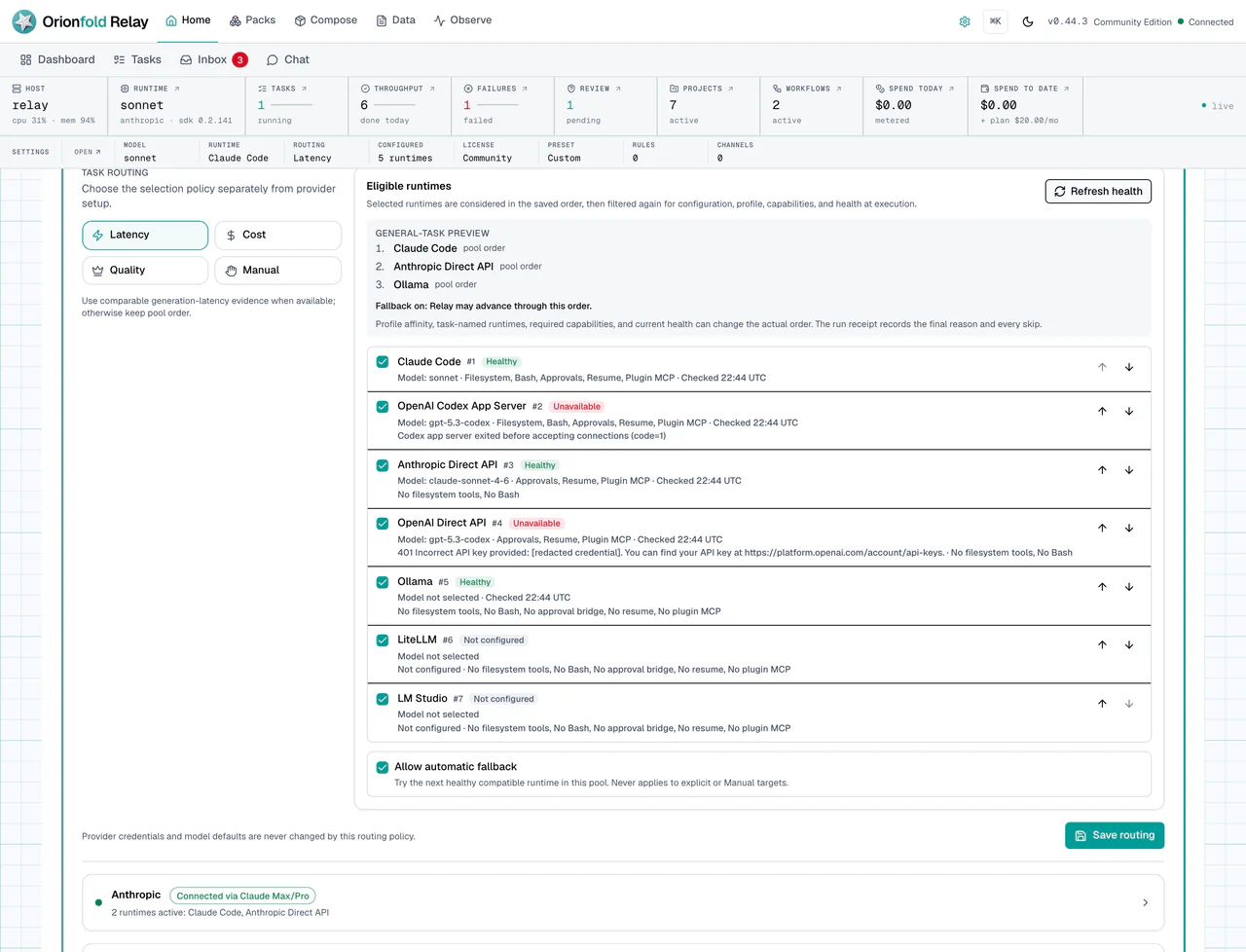
Read Runtime before client work. You do not need to memorize every provider. You need to know which path Relay will try next and whether it matches the job. A local Ollama path, a Claude Code path, and a direct provider path carry different cost and capability expectations.
After Runtime, open License. License state affects new premium pack installs and premium updates. Installed local content should remain installed even if a premium license later expires.
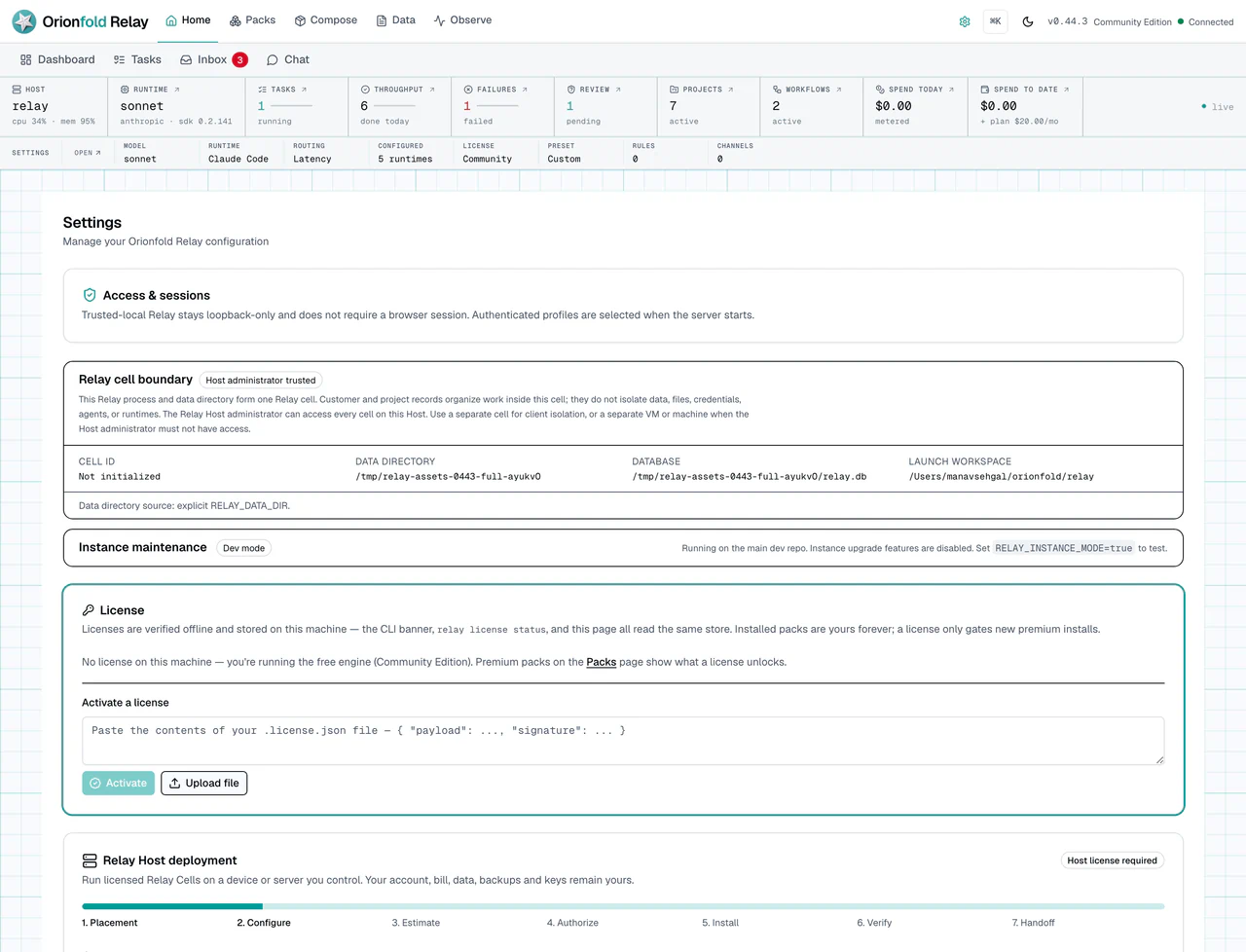
The license panel is part of the opening trust check. If you expect Community Edition, no license may be fine. If you expect premium pack access, check the license before you debug pack actions.
What To Do When The State Looks Wrong
If the app does not open, copy the terminal error before retrying. Relay should print a visible failure. A silent failure is a bug worth capturing.
If the page opens but the data looks wrong, check the data directory. Relay can only show the local state it was started with. Keep demo data separate from real local work.
If Home shows failed or waiting work, do not click Run from habit. Failed work belongs in Monitor or task detail. Waiting work often belongs in Inbox.
If the runtime panel is empty or wrong, fix it before running client work. The wrong runtime can change cost, tool access, and output quality.
If the license panel does not match what you expect, pause pack work. A missing license explains many premium install and update blocks.
What This Changes In Daily Work
The first Relay habit is simple: read state before action. Home tells you what needs attention. Settings tells you what rules apply. Together they prevent the common small-business mistake of starting more automation before current work is understood.
For a solo founder, this means the day starts with a clear operating picture. For an agency operator, it means client work is not mixed with guesswork. For an admin, it means trust and runtime settings are visible before people rely on the system.
You do not need to be cautious forever. You need a repeatable opening check. Start Relay. Read Home. Check Settings when work will cost money, touch client records, use a premium pack, or depend on a model runtime. Then move to the work surface.
Where To Go Next
Next, read Use Packs And Licenses if you need packaged workflows. Read Set Trust, Runtime, And Local Controls before running real customer work.