What This Chapter Helps You Do
This chapter helps you read the Packs gallery, choose the right bundled pack, and understand how license state affects premium installs and updates.
The Operator Story
Northstar Automation Studio sells repeatable services. One client needs a renewal desk. Another needs a support triage loop. A third wants help turning structured website content into a published site. Maya could build each workflow, table, schedule, and agent by hand. That would work once. It would not create a repeatable service line.
Packs are how Relay turns a pattern into something an operator can install, inspect, run, and update. A pack can add agents, workflows, tables, schedules, apps, and app screens. The Packs page is not a place to browse vague ideas. It is where an operator decides which operating layer belongs in a local workspace.
Licenses sit beside packs because some packs are premium. A license should never feel like a mystery lock. Relay should show what is installed, what can be installed, what can be updated, and what remains available if a license expires.
In this chapter, you are not trying to install every pack. You are learning how to read pack state before you make a change.
What This Part Of Relay Is For
A pack is a bundle of Relay parts. It can add agents, blueprints, workflows, tables, schedules, and app screens. Use packs when you want a working starting point instead of building each part by hand.
Licenses control new premium installs and premium updates. If a premium license expires, already installed pack content stays installed. Relay should not take away local work you already have.
This matters for two reasons. First, a small business should be able to try a working pattern without designing the whole system. Second, a small business should not lose local work because a license state changed. Installed content and new premium access are different things.
Think of a pack as a named operating kit. Think of a license as permission to add or update certain premium kits. The pack card should help you understand both.
Walk The Screen Like An Operator
Open Packs from the top navigation. Scan the gallery before you install anything.
What you should notice:
- Pack cards show what each pack adds.
- Cards show free or premium status.
- Installed packs show installed state.
- Premium packs point you to license activation when needed.
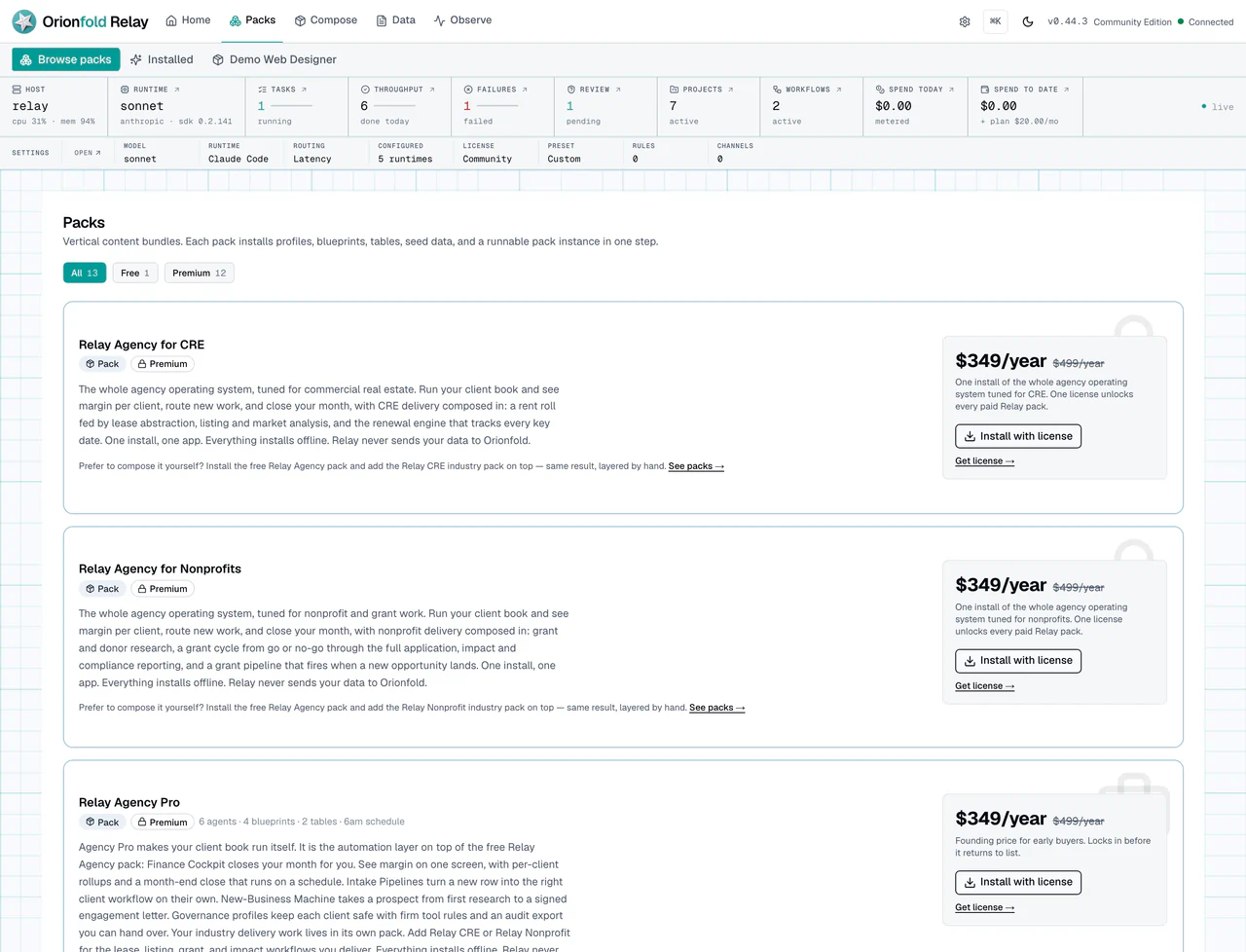
The gallery is the first decision point. Do not read it as a set of pretty cards. Read it as a map of installed capability. Look for the pack family, the action, the install state, and the short value description.
For an agency, the important question might be, “Which pack gives me a client-service base?” For an app builder, it might be, “Which pack gives me the tables and workflow shapes I can reuse?” For an admin, it might be, “Which premium actions require a valid license before I plan this rollout?”
Read a pack card like a contract:
- What job does this pack help with?
- Which parts will it add?
- Is it free or premium?
- Is it already installed?
- Does it need a license before install or update?
The gallery should make free and premium behavior clear. It should not send the operator into a dead end. If a premium pack cannot be installed, the next useful action is license activation or license review.
Run The Work Carefully
Install or update one pack only after you understand what it adds. The app can handle pack actions, and the CLI can install or update packs too:
relay pack add <pack-id>
relay pack update <pack-id>
After install, do not stop at the Packs page. Open Apps to see whether the pack added an operating surface.
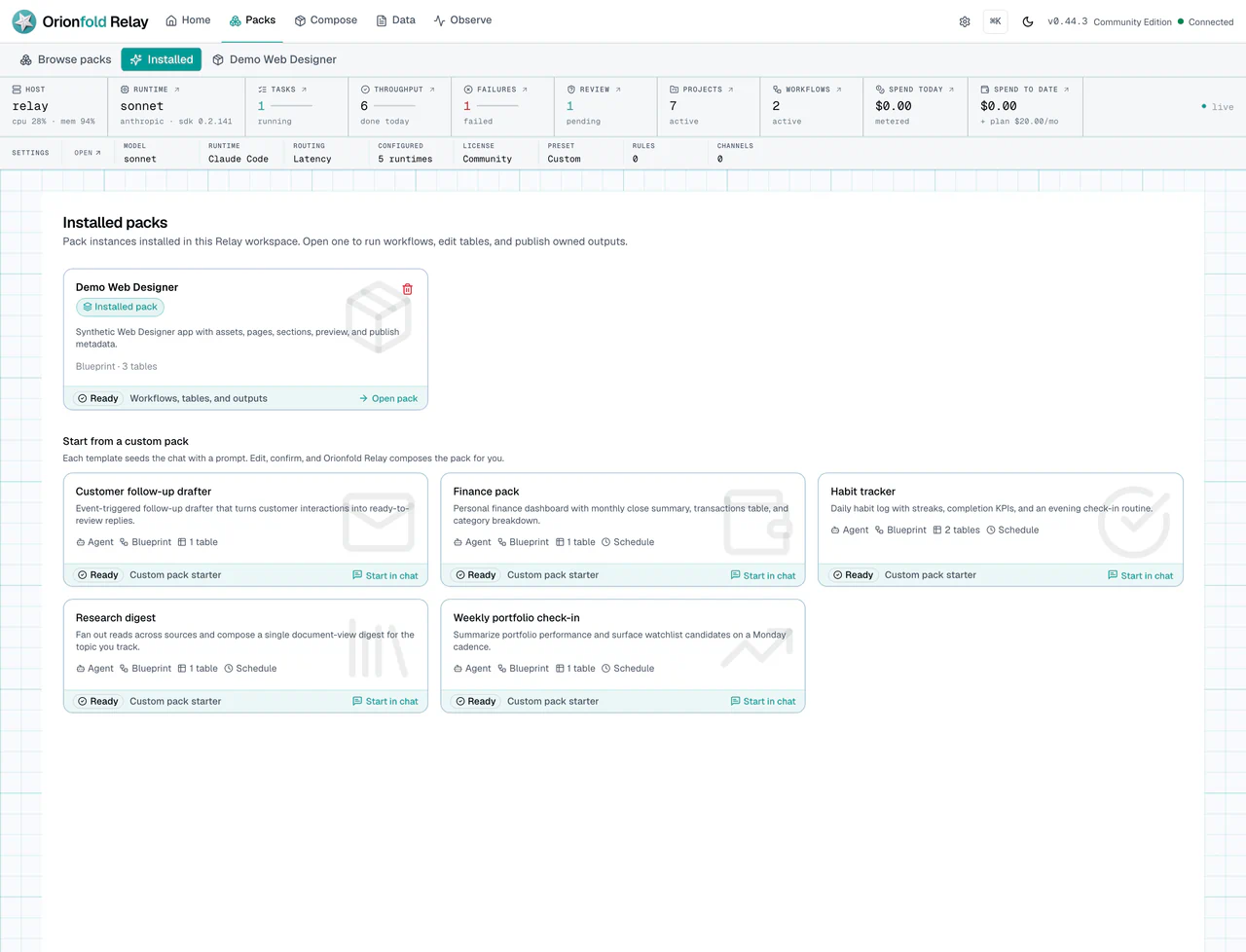
Apps are where pack content becomes day-to-day work. A pack might add a support surface, a web designer surface, or an agency operations surface. This screen tells you which installed modules now have a place to operate.
Next, open Agents. Some packs add reusable instruction profiles. These are not the same as workflows. They are named behavior profiles that can help with repeated work.
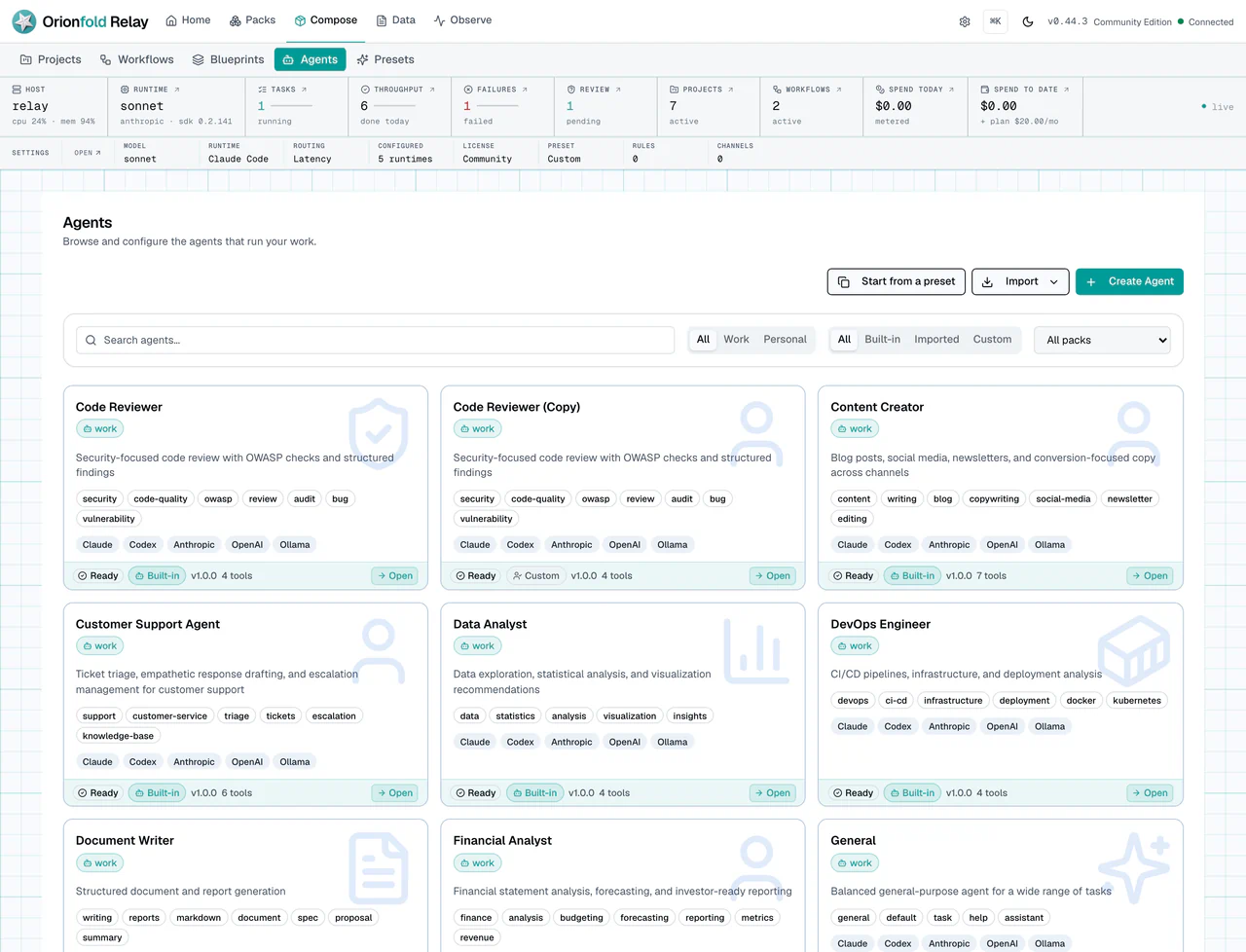
The Agents list helps you see what new work styles are available after a pack install. If the pack came from a known family, the card should preserve that source context so the workspace does not become a pile of unnamed helpers.
Open Schedules if the pack includes recurring work. A schedule means Relay can run a task or workflow on a cadence. That is useful for reviews, reports, checks, and routines that should not depend on someone remembering to click a button.
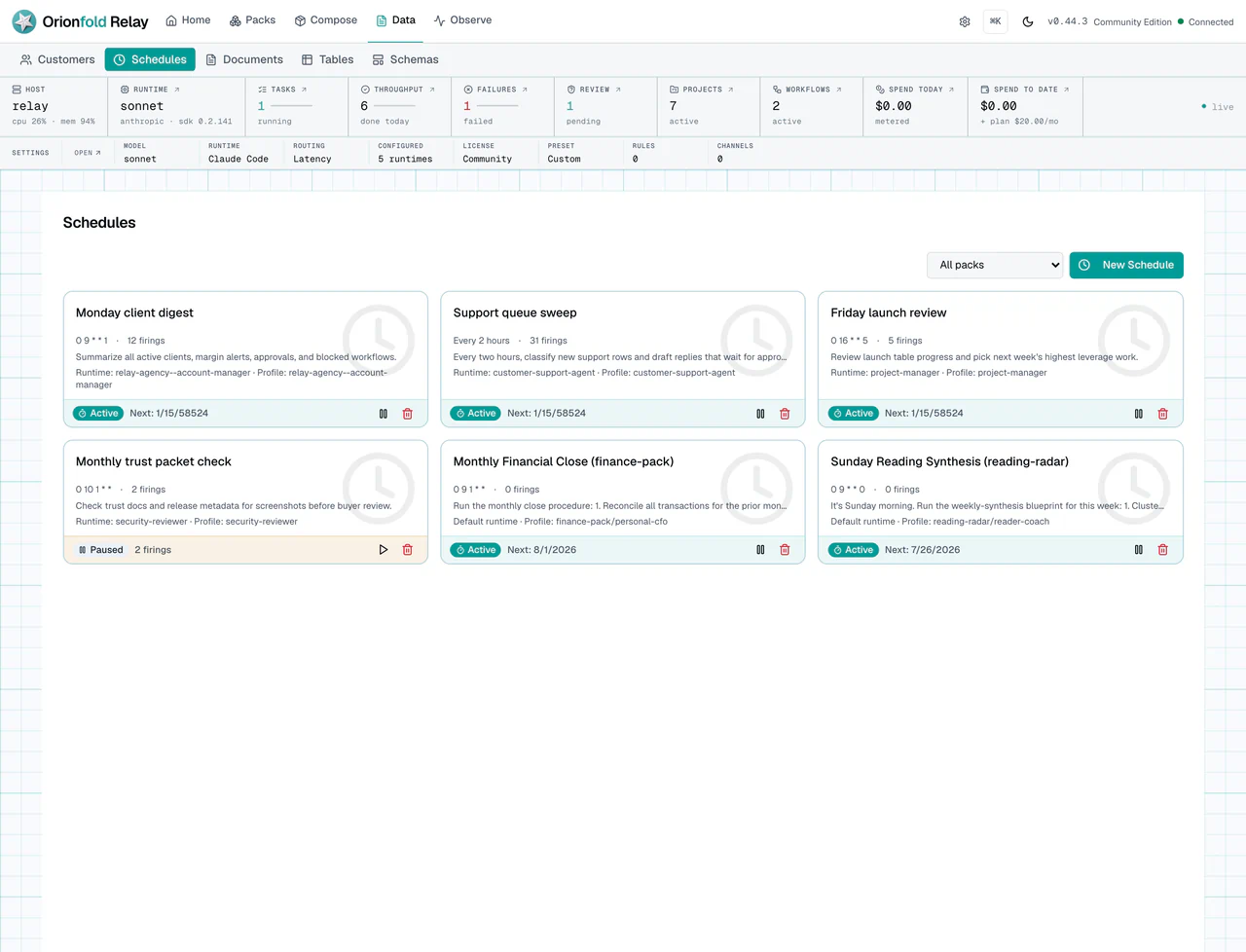
Schedules are where pack installs can become ongoing operations. Before you trust one, check its state, cadence, and source. Pack updates should preserve schedule state. If an update would replace user-edited files, Relay should back them up rather than overwrite without a trace.
When you no longer want a Pack installed, open Apps and choose Remove
pack, or use relay pack remove <pack-id>. Read the confirmation as a data
retention receipt. Relay removes the installed Pack files and its schedules. It
keeps tables and their rows, reusable agents and blueprints, durable customers,
and customer cost attribution. Delete those retained records separately from
their owning screen only when that is your intent.
Removing a Pack is not the same as removing or purging a Relay Cell. A Cell is the complete isolated Relay runtime and data root. Pack removal changes what is installed inside one Cell; it does not delete that Cell.
Finally, open Settings and review License. This is the place to confirm premium access before a pack update matters.
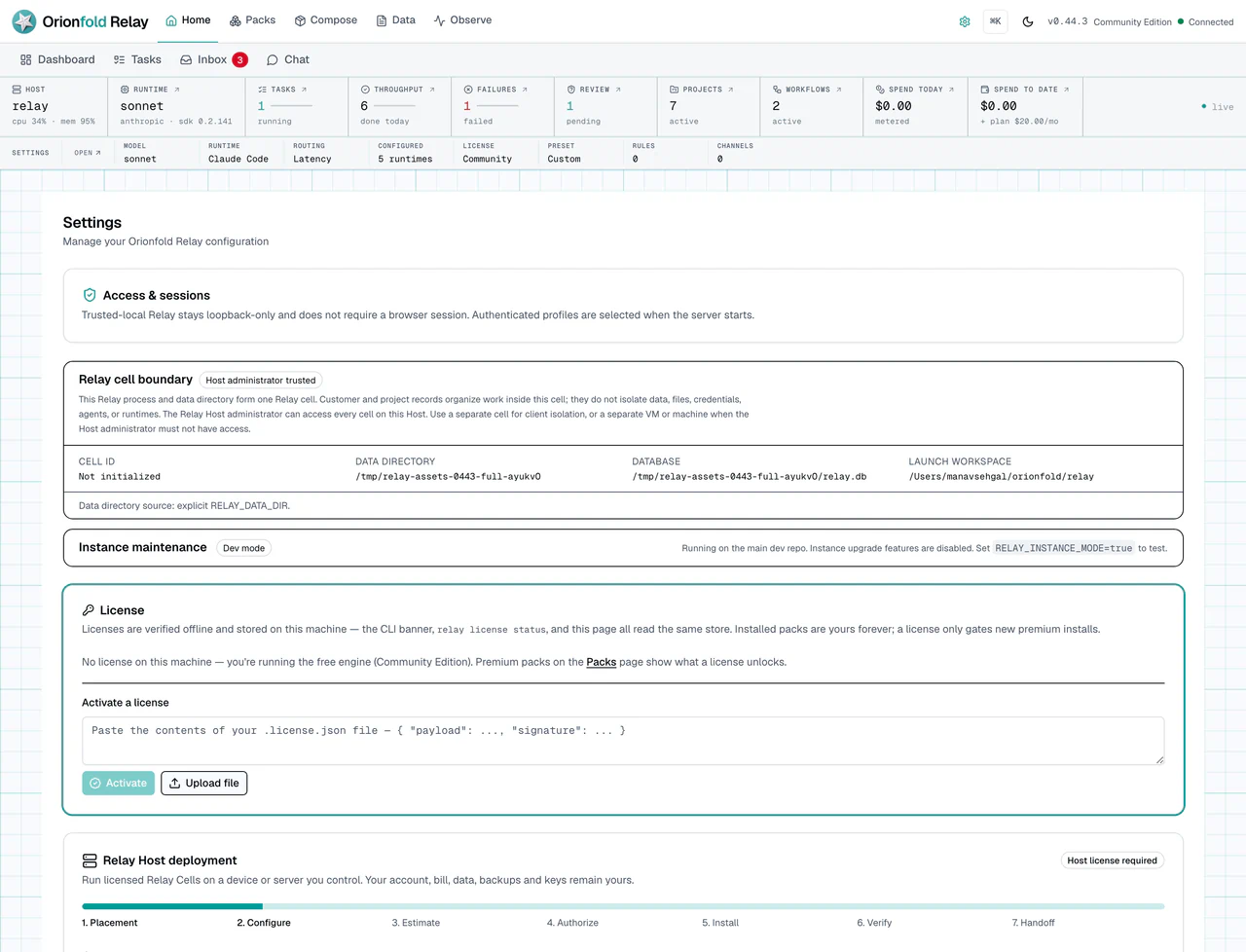
The license panel reads the same saved license store as the CLI. License verification is offline. That means Relay can verify a license file locally, without turning your local workspace into an Orionfold-hosted account.
What To Do When The State Looks Wrong
If a premium pack asks for a license, open Settings and check License. Do not keep clicking install. The card is telling you which prerequisite is missing.
If a pack update is blocked, keep using the installed version while you fix the license state. A blocked premium update should not remove installed local content.
If a pack installs but a screen looks empty, open Apps first. Some pack parts live inside an app surface instead of the top-level list. Also check Workflows, Tables, Agents, and Schedules depending on what the pack said it added.
If a CLI install succeeds but the running app does not reflect the change, refresh the app. The current product is designed to pick up CLI-installed bundled packs without a full restart, but a refresh is still the simplest first check.
If a pack update mentions backups, read the backup path before you continue. Backups matter when someone has edited pack files locally.
If you removed a Pack and still see its tables, agents, blueprints, customers, or attributed costs, that is expected retention rather than a failed removal. Use the owning view to review and delete retained data separately.
What This Changes In Daily Work
The Packs page changes Relay from a blank workspace into a set of named operating choices. An agency can install a service base. A nonprofit operator can install a grant or donor process. A web-services operator can install the web design family. An app builder can study the parts and reuse the pattern.
The daily habit is to read pack state before you act. Ask what the pack adds, where those parts will appear, and what license state applies. Then confirm the installed result in Apps, Agents, Schedules, Tables, or Workflows.
This is also how you avoid pack sprawl. Install the pack that serves the next job. Confirm the surfaces it created. Leave the rest alone until a real process needs them.
Where To Go Next
Next, read Organize Customers, Projects, And Tasks to see how pack work connects to day-to-day records.