What This Chapter Helps You Do
This chapter helps you use Web Designer and Publisher to prepare a small static website from Relay table data.
The Operator Story
Studio Vale needs a simple site for a new offer. The content already has structure: services, proof points, calls to action, and sections that can live in rows. The operator does not want to hand-copy that data into a separate website builder and then wonder whether the preview matches the published result.
Relay Web Designer and Publisher exist for that kind of work. Web packs can turn structured Relay rows into a static site. The publish path can send the artifact to a user-owned GitHub Pages target. The important promise is not “one click website magic.” The important promise is that content, preview, and publish state stay connected inside a local Relay workspace.
This chapter shows how to inspect the app surface, the tables behind it, and the pack state before publishing.
What This Part Of Relay Is For
Web packs let Relay build a static site from table rows. Web Designer lets you set the theme, density, hero layout, accent, section style, whether CTAs show, and the template. Web Publisher handles preview and publish behavior.
The goal is simple. The preview should match what you publish. Unsafe site links should be rejected. Empty gallery thumbnail frames should not make the product look broken.
This is not a replacement for every web tool. It is a structured path for small sites that fit Relay’s table and pack model. That makes it useful for agencies, service businesses, and operators who want repeatable web assets tied to local business records.
The web flow also proves why the asset corpus exists. Screenshots, guide text, demo fixtures, and website claims should all point at the same product behavior. If Web Designer says a preview was stored, the guide should describe that behavior, the demo should simulate it, and the screenshots should show the same surface.
Walk The Screen Like An Operator
Open Apps. Then open Web Designer if it is installed.
What you should notice:
- Installed app cards.
- A web app screen with controls and related tables.
- Pack context that shows where the app came from.
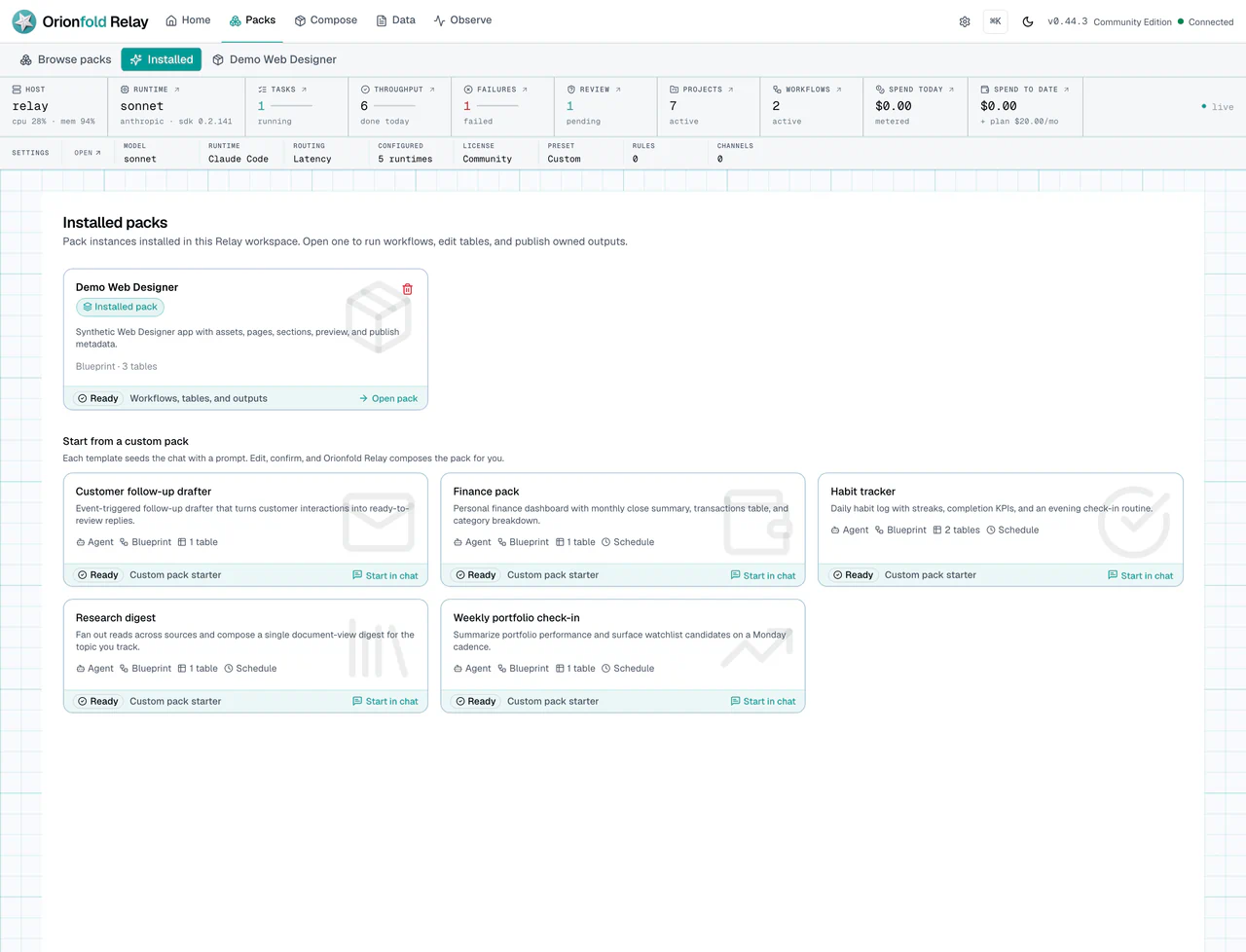
The Apps list tells you whether the web operating surface exists. If Web Designer is missing, do not hunt through unrelated screens. You likely need the web pack family installed.
After you open the app, read the Web Designer surface before changing controls.
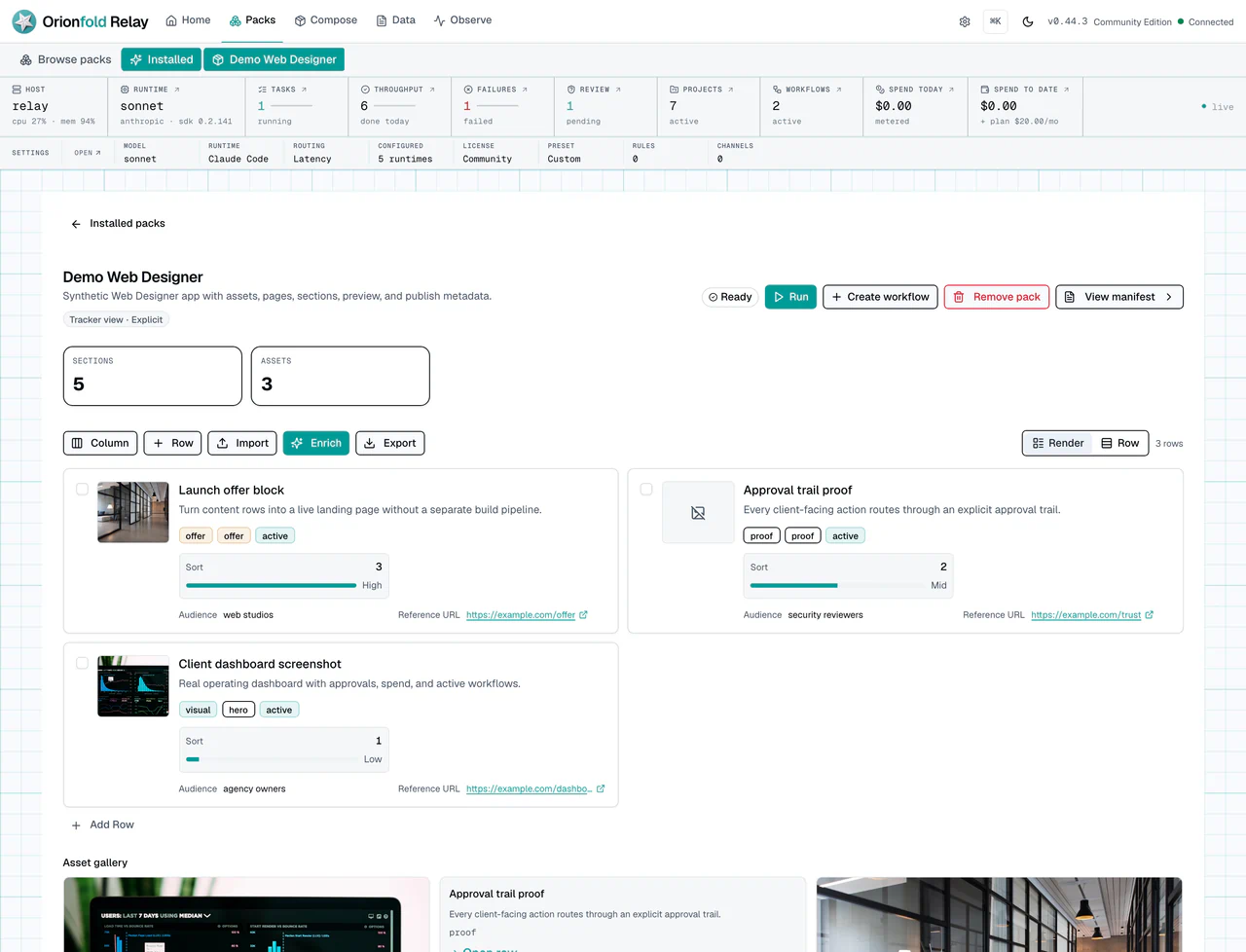
This figure is the workbench. It should show site controls, related data, and publish or preview context. Read it like a production screen. Which template is selected? Which visual controls are available? Is there a preview or deployment record? Is the app tied to the expected pack?
Run The Work Carefully
Check the tables that feed the site. Web templates and site content come from rows, not from a private project folder.
What you should see:
- Tables for site content or pack data.
- Template rows where the web template pack provides them.
- Preview or publish state when available.
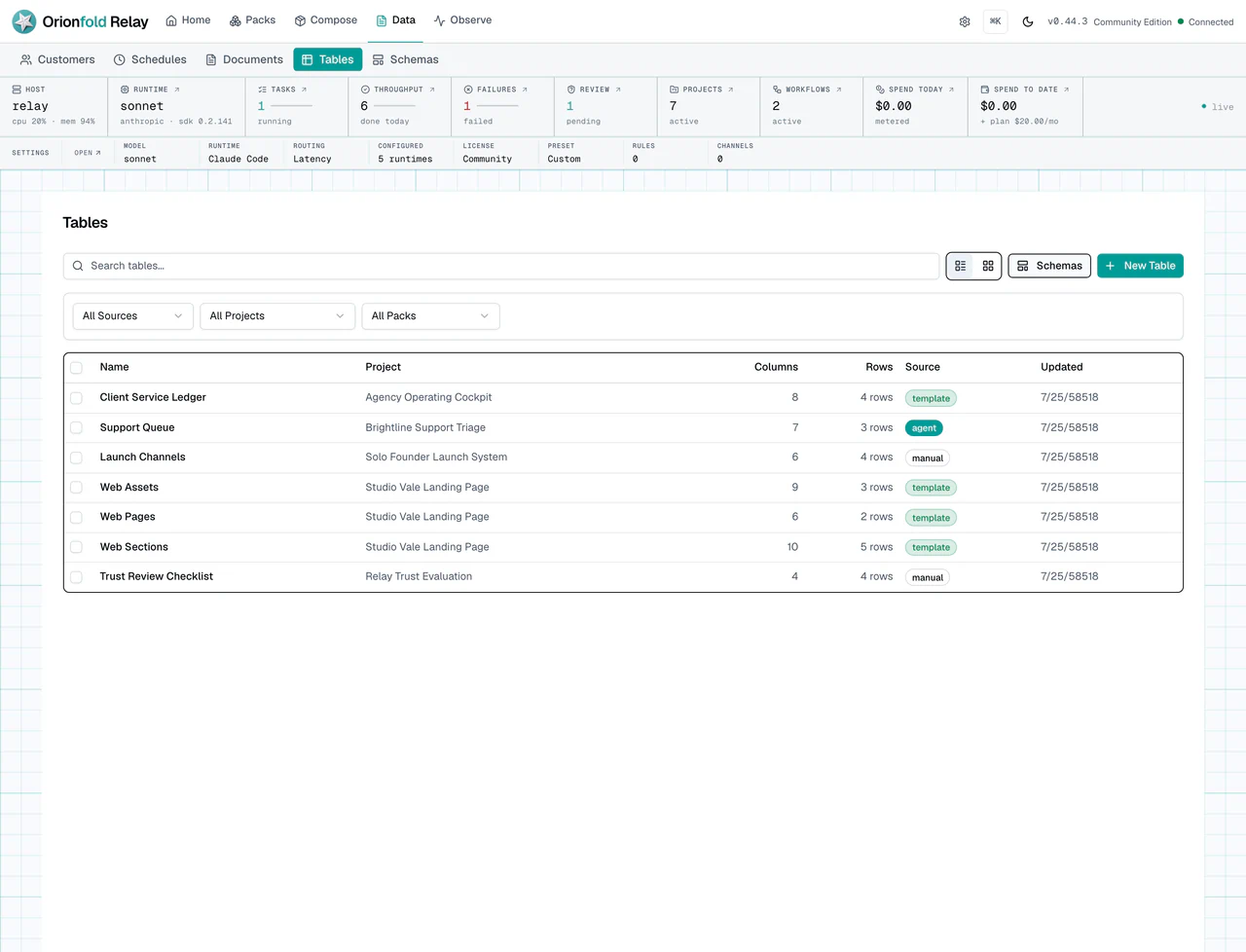
The Tables list is where you confirm that site content is structured. A site generated from table rows is easier to repeat than a one-off pasted page. It also gives the future static demo a clean source of truth.
Open a content table or another structured example to inspect row shape before publishing.
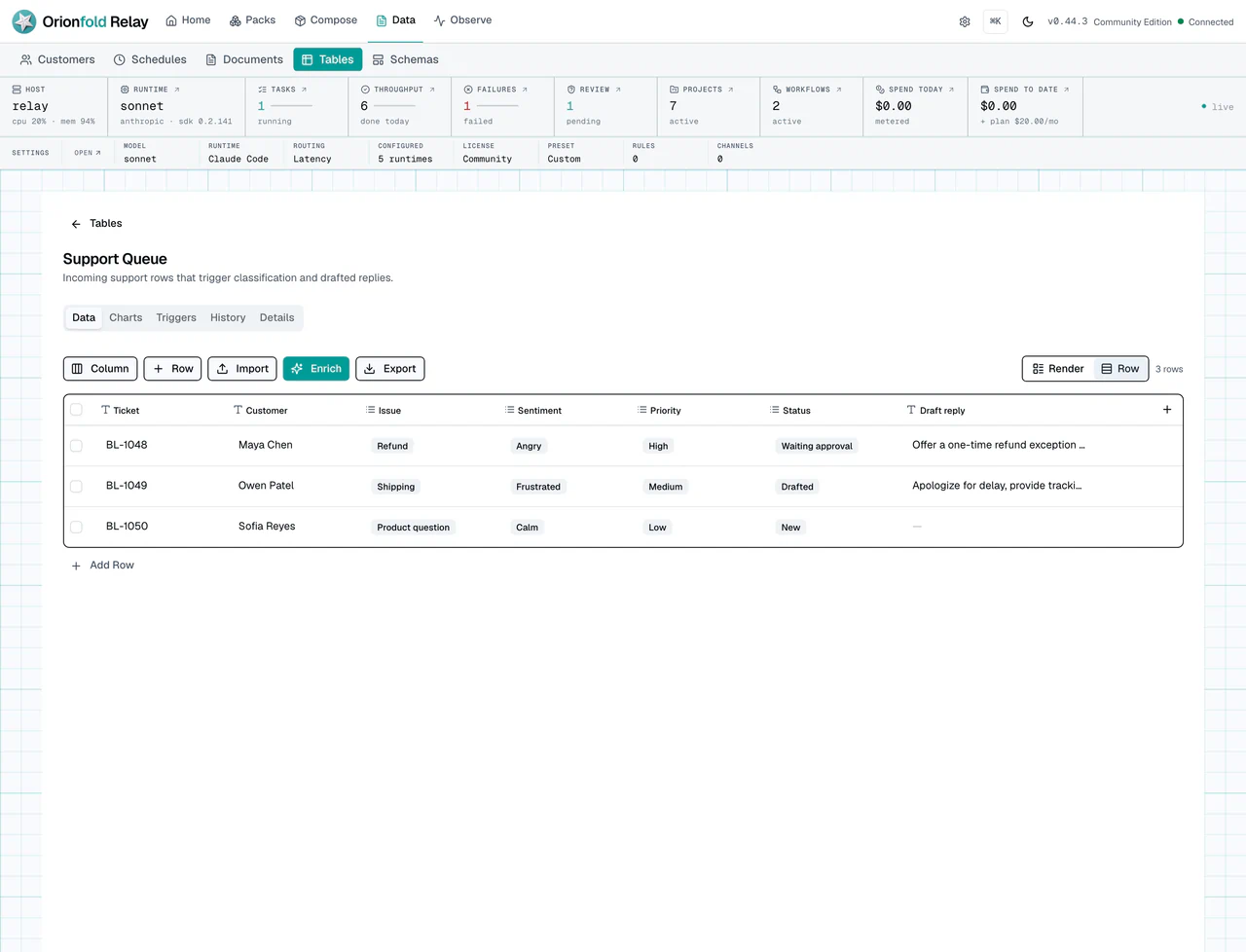
This example is a support queue, not a website table, but it shows the same principle. Rows carry fields. Fields become inputs. If the data shape is wrong, the generated output will be wrong. Fix the rows before blaming the generator.
Use Render when you need to scan site records as content. Relay can turn title-like text into a heading, description-like text into an abstract, safe image URLs into thumbnails, categories into pills, and numbers into Low, Mid, or High indicators. Use Row when you need dense column editing. The Tables detail screen starts in Row mode, while a generic table hero inside an app can start in Render mode.
If Relay infers the wrong content role, switch to Row for editing. A Pack, schema, or composed table definition can declare an explicit role instead of renaming business data only to influence presentation. The current table-column form does not expose that authoring control for an existing operator-created table. Unsafe image URLs, including URLs with embedded credentials, do not render as thumbnails. That safety rule applies before the row reaches the generated site path.
When the data is ready, return to Web Designer. Set the site controls. Choose the template and visual controls you want. Preview the site before you publish.
Use Packs if the web pack family is not installed yet.
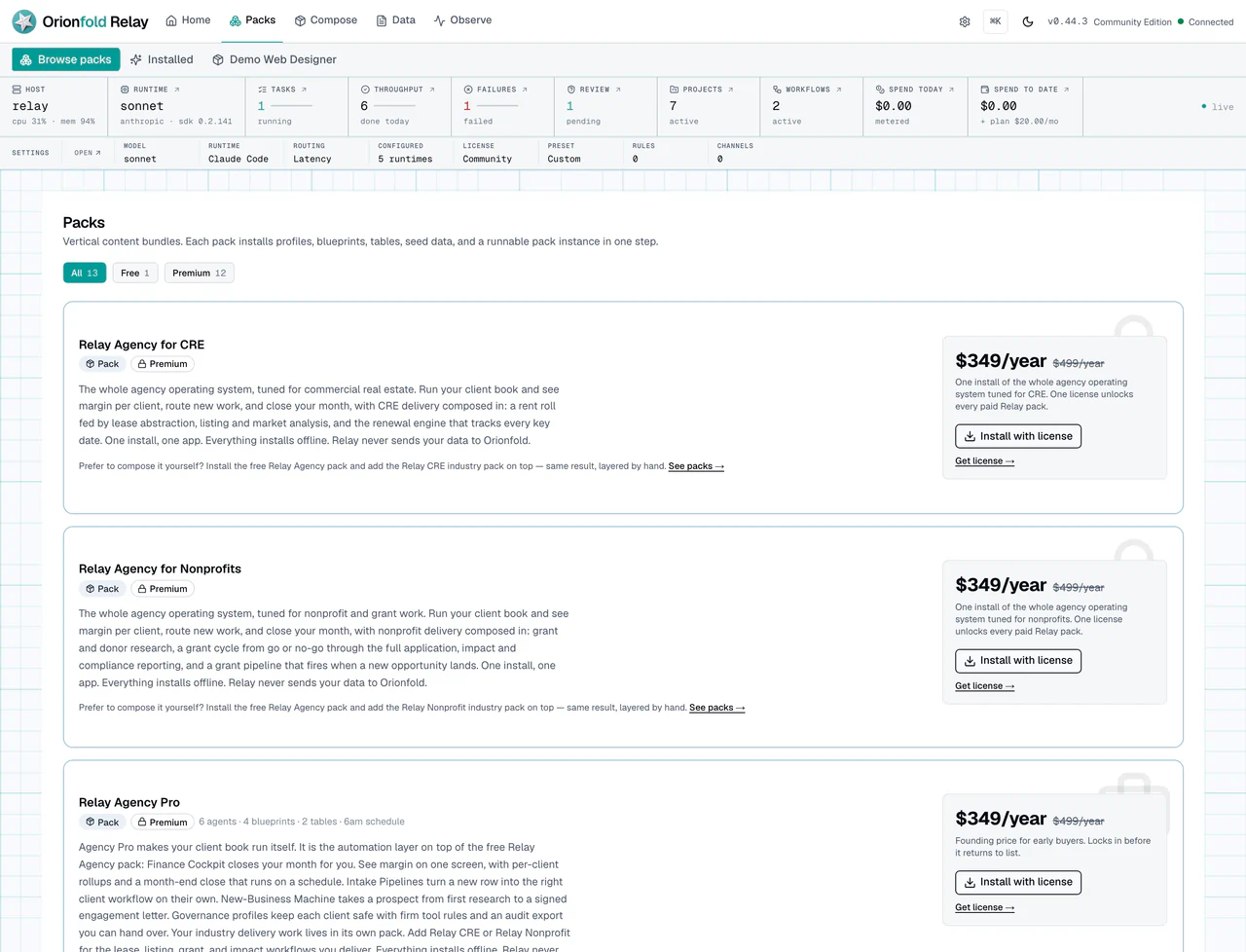
The Packs gallery is the recovery path for missing web surfaces. Look for Relay Web Assets, Relay Web Publisher, Relay Web Templates, and Relay Web Designer. Install only the parts needed for the job and confirm the resulting app surface.
After the pack is installed, return to Apps instead of staying in Packs. Packs answer “what can I add?” Apps answer “what can I operate now?” That distinction keeps the operator focused on the site, not on the package list.
What To Do When The State Looks Wrong
If Web Designer is missing, open Packs and install the web pack family you need. Then return to Apps.
If preview and publish do not match, keep the preview path and publish path for review. The product should store and reuse preview artifacts so the published artifact matches the preview path.
If a link is rejected, fix the site content before you publish. Link safety exists to prevent unsafe generated-site links from shipping.
If a gallery thumbnail is empty, check whether the app has a safe thumbnail. Empty frames should be omitted or made useful.
If publish targets point to the wrong place, stop. A user-owned GitHub Pages target is still a real destination. Confirm ownership before publishing.
If the generated site looks correct but the data source looks wrong, fix the data source first. A site generated from stale rows will keep reproducing stale content. The strength of this path is repeatability, so the source rows need the same care as the visual controls.
If Render mode hides a field you need for editing, switch to Row. Render is an operator reading view, not a replacement for the full table grid.
What This Changes In Daily Work
The daily habit is to treat web output as structured work. Content lives in tables. Design choices live in Web Designer controls. Preview and publish state should be visible. Packs provide the web family when the surface is missing.
For a small agency, this turns a website pattern into a repeatable service. For a founder, it makes a simple site easier to revise from data. For an app builder, it shows how pack apps can combine tables, templates, and publish actions.
Do not publish from a guess. Read the app, read the rows, preview, and then publish.
This habit also helps after launch. When a client asks for a section change, you can update the row or template choice, preview again, and publish a new artifact. The process stays inside Relay instead of becoming a hunt through loose files.
Where To Go Next
Next, read Set Trust, Runtime, And Local Controls before publishing customer-facing work from a real workspace.