What This Chapter Helps You Do
This chapter helps you audit what ran, what it cost, and where to tune runtime choices.
The Operator Story
Harbor & Field Advisors asks Northstar for a renewal analysis. The workflow starts, a research task runs, and one step fails before synthesis because a demo budget threshold is reached. Maya now has a choice. She can rerun the task and hope, or she can inspect what happened.
Good operators inspect first. They need to know which runtime was used, what failed, whether the work was local-free or metered, and which customer or project should carry the cost. Relay has two main surfaces for this habit: Monitor and Cost & Usage. Cost & Usage sits under the Observe section in the top navigation. This guide calls it the cost view for short.
The purpose is not accounting theater. The purpose is to make agent work explainable enough for a small business.
What This Part Of Relay Is For
Relay work should leave a trail. Monitor helps you inspect runs, activity, and failures. Costs helps you separate plan price, budget cap, local-free usage, and metered spend. Customer and project attribution help you understand who the work belonged to.
These screens matter before you rerun failed work or raise a budget. A failed provider call, a waiting approval, and a budget stop all require different next actions. If you cannot tell which one happened, you are guessing.
Runtime selection also belongs in this chapter because model path affects cost and behavior. A local path, a direct provider path, and an SDK-backed runtime should not be treated as the same operational event.
The cost screen is also where Relay has to be honest about limits. A plan price is not the same as a budget cap. A budget cap is not the same as metered usage. Local-free usage is not the same as free provider usage. The guide uses these plain distinctions because they are the words an operator needs when a client asks, “What did this run cost us?”
Walk The Screen Like An Operator
Open Monitor after a task, workflow, or chat-backed action runs.
What you should notice:
- Run rows or activity entries.
- Runtime or provider identity where Relay has it.
- Failure context when a run did not complete.
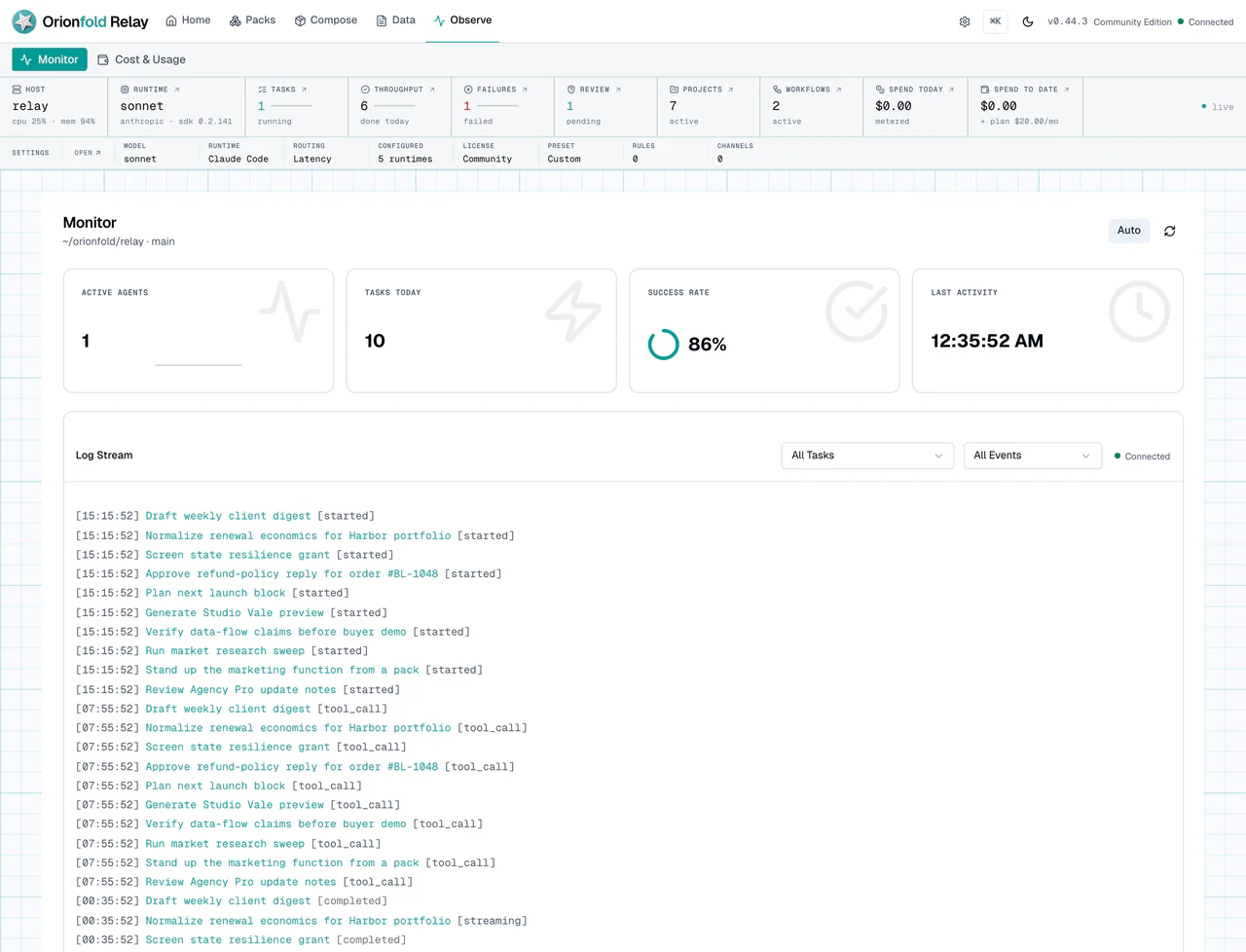
Monitor is the place to slow down. Read the latest run before clicking Re-run. Look for status, runtime, failure text, and the related task or workflow. A visible error is better than a quiet miss. If the generator threw, the failure should be visible enough to start diagnosis.
Next, compare that with the task board. Tasks show the operator-facing state of work.
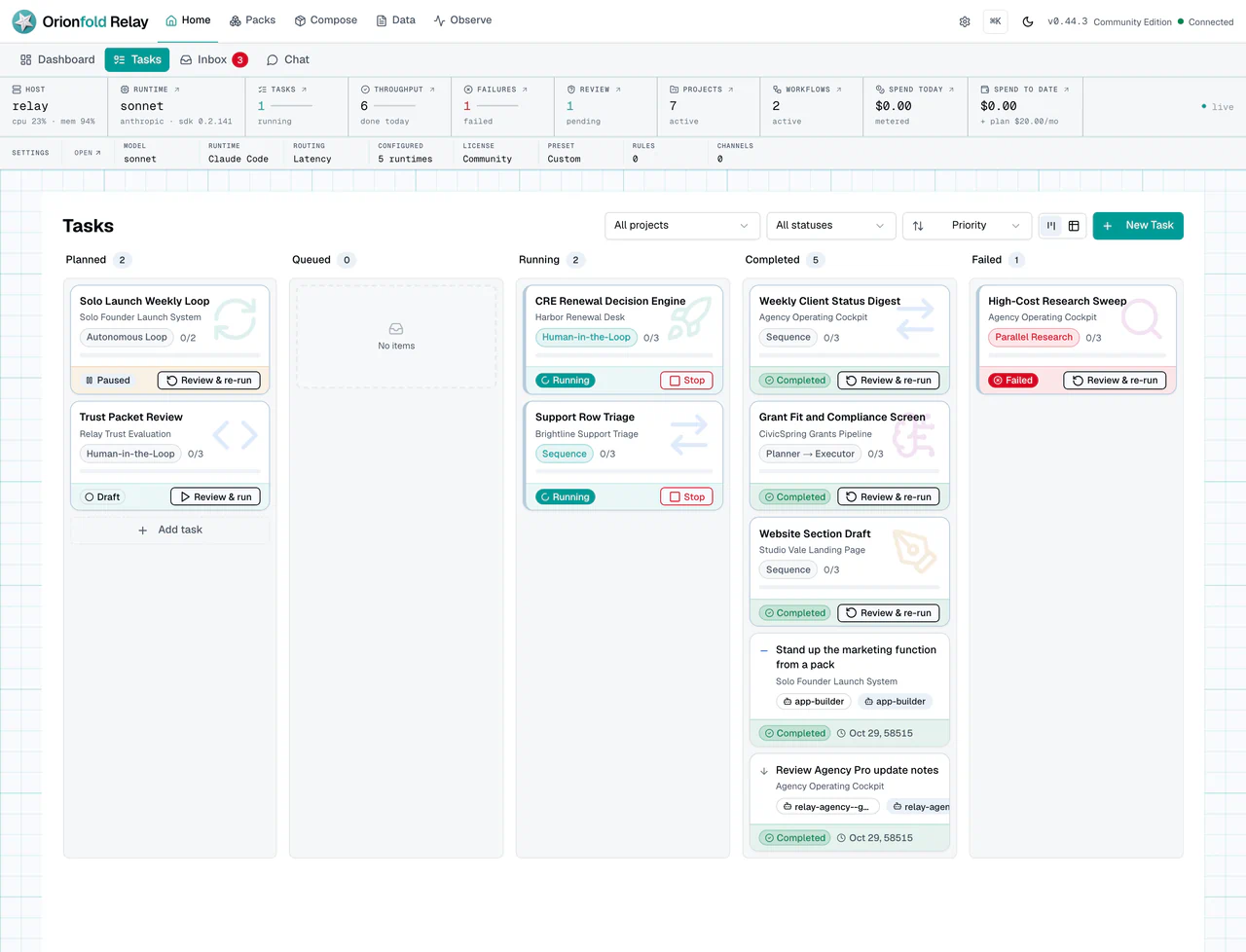
The task board helps you avoid mixing up states. Failed work needs diagnosis. Waiting work needs a person. Running work needs patience or a Stop decision. Completed work needs review. Relay should not imply that active rows are live if their child tasks are stale.
Run The Work Carefully
Open Cost & Usage from the Observe section. Read spend by provider, model, customer, or project where the data is available.
What you should see:
- Spend and usage signals.
- Local-free usage separated from metered usage.
- Customer or project attribution where runs are linked.
- Budget context that does not confuse plan price with actual usage.
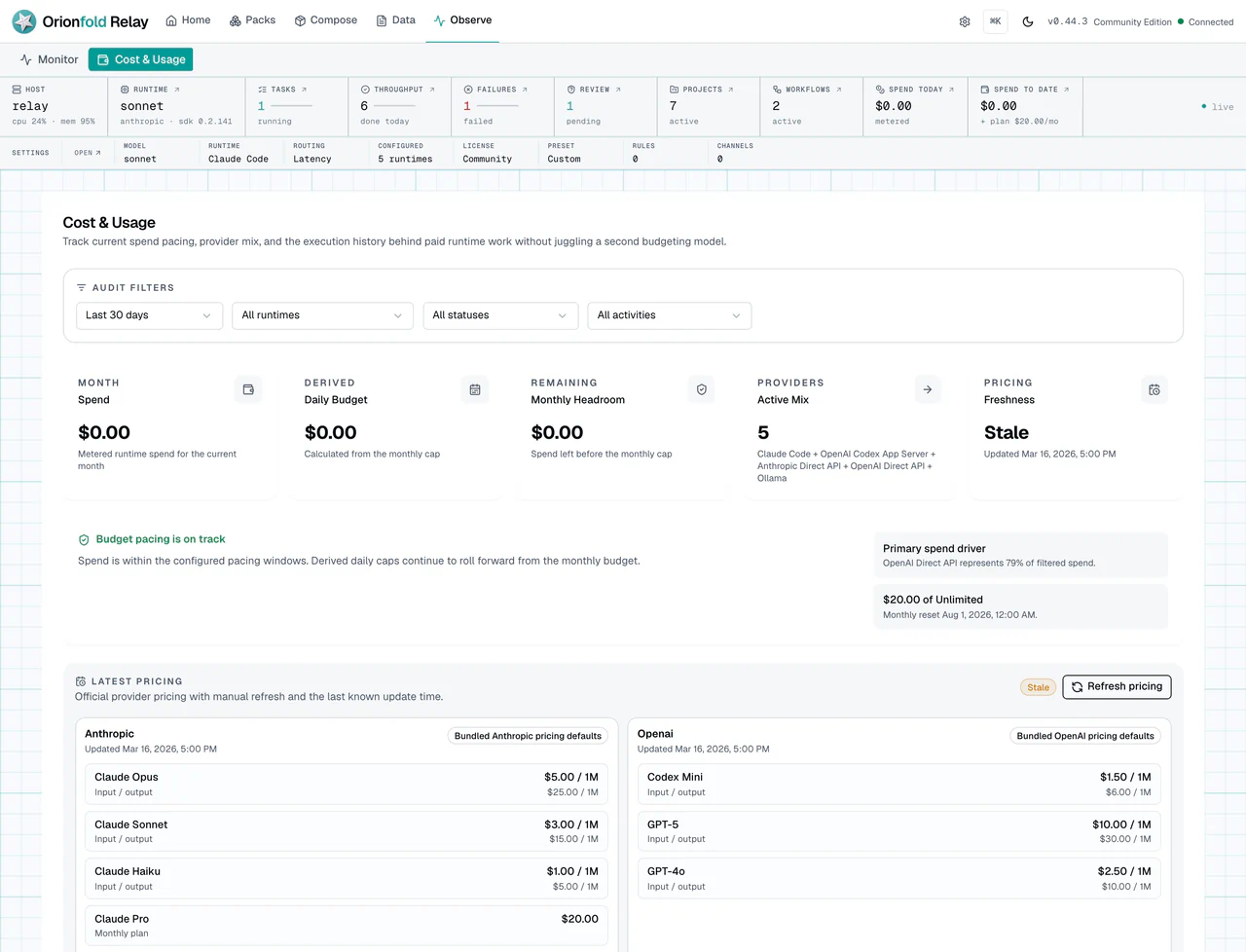
Costs is not only for finance. It is an operating screen. It helps an agency understand margin, a founder understand burn, and an admin explain why a budget limit stopped work. Read actual metered usage separately from plan price and budget cap.
If runtime choice looks wrong, open Runtime settings.
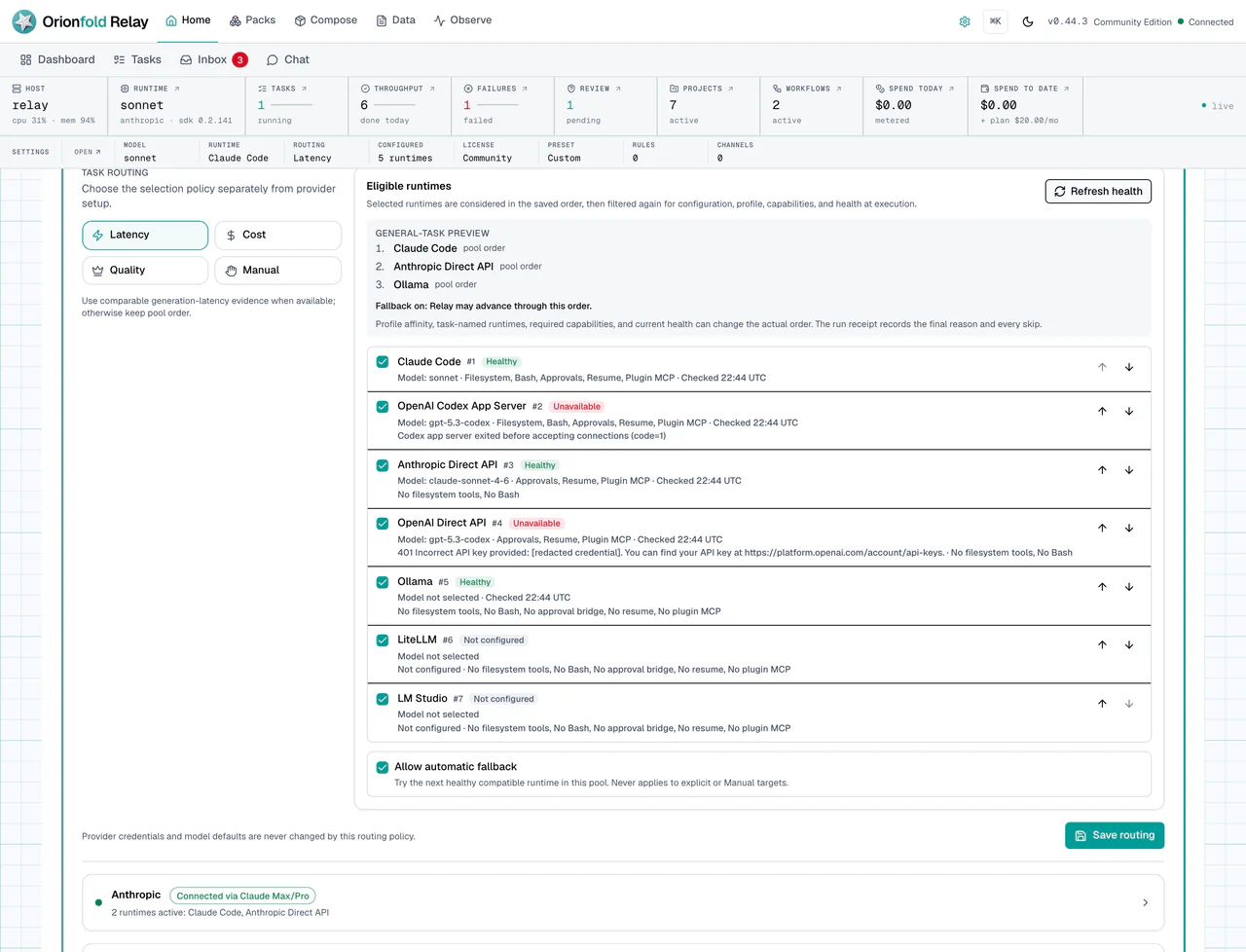
Runtime settings are the upstream control. If a run used the wrong path, the fix may not be in Costs. It may be in model preference, provider configuration, or a more specific runtime pin.
A careful review links three screens. Monitor tells you what happened. Tasks or Workflows tell you what business item changed. Costs tells you what usage was recorded. If those three screens disagree, treat that as a signal. Do not hide it in a report.
Home can shorten the first pass. Needs attention surfaces failed, waiting, queued, and active work. Autonomous activity summarizes recent events without exposing raw provider payloads. Recent outputs points to retained results. The card links take you to Tasks, Monitor, and Documents for the full evidence.
Dashboard Settings controls whether pricing coverage and provider readiness appear on Home. These modules start hidden, so turn them on when missing prices or runtime configuration are part of your regular review. Smart ordering can promote failures, urgency, recent activity, and recency, but the default Needs attention, Autonomous activity, and Recent outputs cards remain a stable top row while they are visible. If an urgent item exists inside a hidden module, Home shows a notice rather than silently losing the signal.
What To Do When The State Looks Wrong
If a run is missing from Monitor, check the task or workflow detail first. The work may have been created but not started.
If spend is not attributed to a customer, check whether the run was linked to a customer or project. Missing attribution is not always a bug, but it weakens review.
If local-free usage is not shown as expected, confirm the runtime path in Settings. Do not assume a model name proves the execution path.
If a task failed, keep the error text. A named failure can be fixed. A vague memory of a failure cannot.
If costs look high, do not raise a budget immediately. First ask which customer, project, runtime, and workflow produced the spend.
If a cost row shows blocked or failed work, read it as part of the story. A failed run can still have usage. A blocked run can still teach you that a limit worked. The point of Costs is not only to count success. It is to show the cost of attempts, stops, and retries too.
If a Home module you rely on disappears, check Dashboard Settings before assuming the underlying records are gone. Confirm its visibility and then open the named destination screen. Home is a summary, while Monitor, Costs, Tasks, Workflows, and Documents remain the evidence surfaces.
What This Changes In Daily Work
The daily habit is to audit before repeating. When work fails, inspect Monitor. When spend matters, inspect Costs. When the path looks wrong, inspect Runtime.
For an agency, this makes client margin visible. For an SMB, it keeps recurring automation from becoming a mystery bill. For a solo founder, it helps choose when to use local paths and when to pay for a provider path.
Relay is most useful when work has a trail. The trail lets you explain decisions later.
That trail also improves future planning. When a workflow is costly, you can decide to use a local path for drafts and a paid provider path for final review. When a customer consumes more work than expected, you can revisit scope. When a failed task repeats, you can fix the workflow instead of paying for the same mistake again.
Where To Go Next
Next, read Build And Publish A Small Website if your work includes web pages or publishing.