What This Chapter Helps You Do
This chapter helps you use tables, row triggers, schemas, and schedules as the backbone for repeatable operations.
The Operator Story
Brightline Books has a support queue. Each row is a customer issue with status, owner, notes, and enough context for a reply. Some rows only need tracking. Some rows should start a workflow. Some work should recur every week without waiting for a person to remember it.
This is where tables, triggers, schemas, schedules, and apps meet. A table gives the business data a shape. A trigger can start work from a row. A schema can define a reusable table structure. A schedule can run recurring work. An app can bring those parts into one operating surface.
Without this structure, an SMB operator has to copy data from spreadsheets into chat prompts and then copy results back again. That can work once. It breaks down when the process repeats.
What This Part Of Relay Is For
Tables hold structured local data. A row can represent a support ticket, lead, property, donation, campaign item, or internal request. Relay can use that row as the source for a workflow when a pack or app defines a row trigger.
Schedules handle recurring work. Schemas define reusable table shapes. Installed apps bring the pieces together into focused operating screens.
The important idea is that data is not only reference material. In Relay, data can be the starting point for work. A new row can become a workflow input. A schedule can run a review. A pack app can show the table, workflow, and last run in one place.
Walk The Screen Like An Operator
Open Tables. Pick the table that matches the process you want to run.
What you should notice:
- A list of local tables.
- Table names that match installed packs or local work.
- Rows that can be edited without leaving Relay.
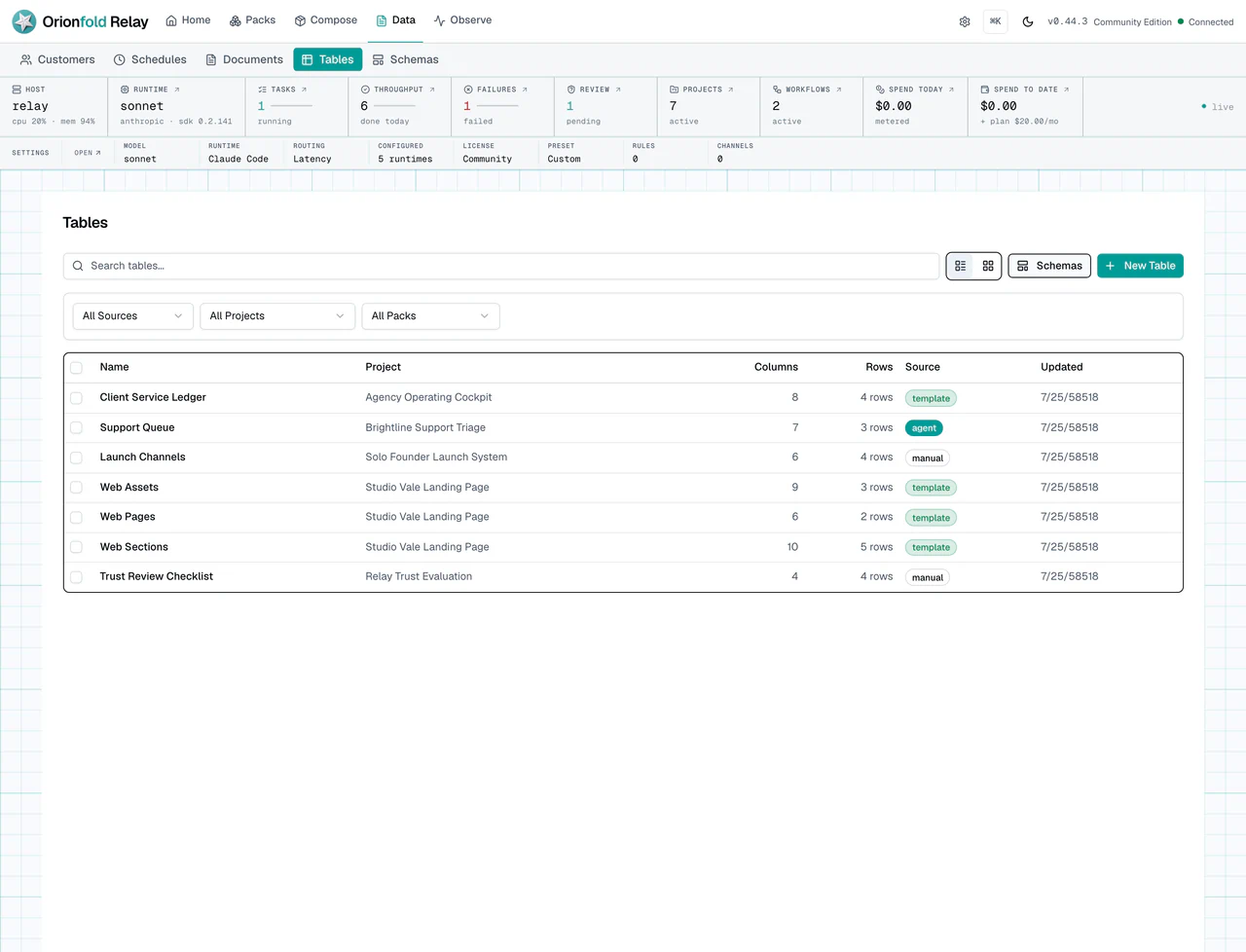
The Tables list is the map of structured local records. Read it before you automate. The table name should tell you what business process it supports. If the table came from a pack, that source gives context. If the table is custom, the name should still be clear enough for another operator to understand.
Open a working table, such as the support queue. Read the columns before you add or change a row.
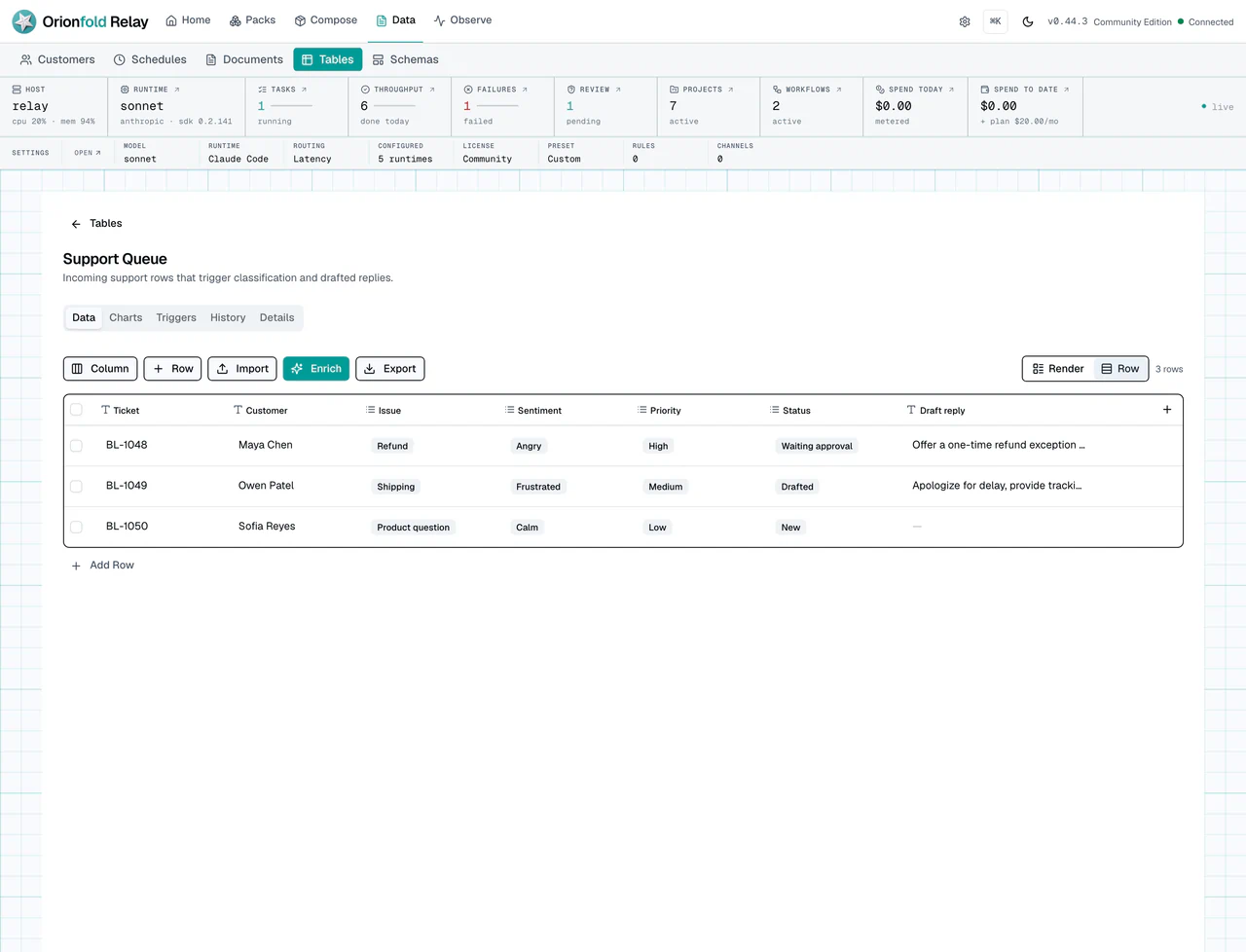
This figure shows why row shape matters. A row-triggered workflow can only use values that exist in the row or defaults supplied by the blueprint. If a required variable has no matching column and no default, the trigger should fail visibly during setup or dispatch. Silent trigger failure is the worst outcome because the operator thinks work started when it did not.
Use the Render and Row switch in the table toolbar for two different jobs. Row is the default on the Tables detail screen because it keeps columns dense and makes editing, sorting, selection, import, export, and enrichment easy to reach. Render turns each record into a larger, type-aware item for scanning.
Render mode chooses one short-text field as the title and can place a description or abstract below it. Safe image URLs can appear as thumbnails. Select fields and category-like columns become stable colored pills. Numeric fields show their value with a Low, Mid, High, or No range indicator based on the visible values or an explicit number domain. Dates, booleans, email addresses, web links, and other metadata use formats that match their type.
Column display roles are additive. A Pack, schema, or composed table definition can explicitly mark the title, description, image, category, metric, date, link, boolean, or metadata role. When no role is set, Relay uses the column type and familiar names such as title, summary, image, status, or amount. Unsafe image URLs, including URLs with embedded credentials, do not become thumbnails. Generic table surfaces inside apps can open in Render mode, while the Tables detail screen stays in Row mode until you switch it.
Open Schemas when you need to inspect reusable table structure.
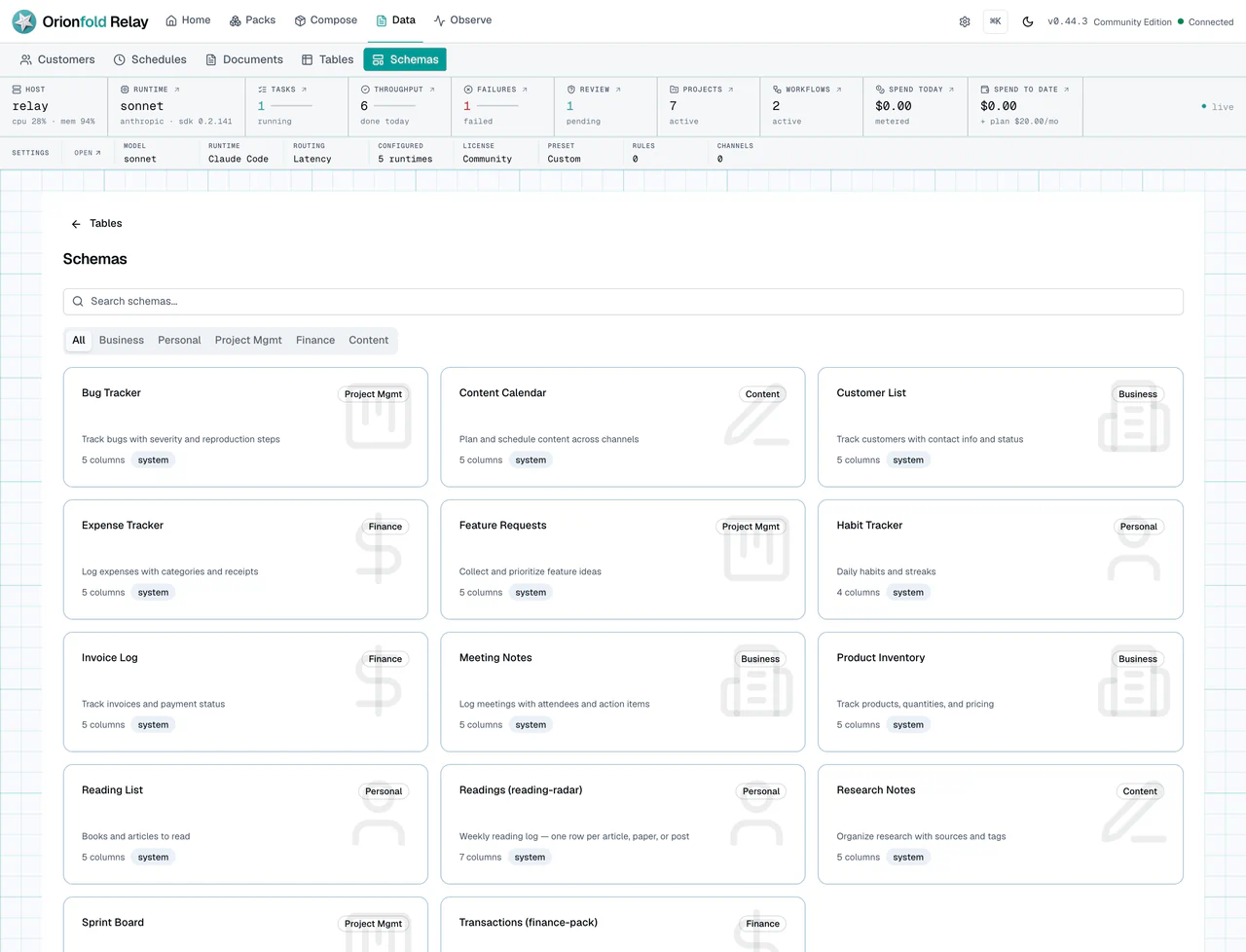
Schemas help when a pattern repeats. If several packs or apps need the same kind of table, a schema gives that table a reusable shape. Use schemas to make structure explicit instead of relying on memory.
Run The Work Carefully
Use a row-triggered process when a new row should start work. Required variables must be filled from row data or defaults. Relay should catch invalid trigger variable setup visibly.
Use Schedules when work should run on a cadence.
What you should see:
- A row insert can start a workflow when the pack or app defines that trigger.
- A schedule can run a task or workflow on its configured cadence.
- Pack schedules should keep their state across pack updates.
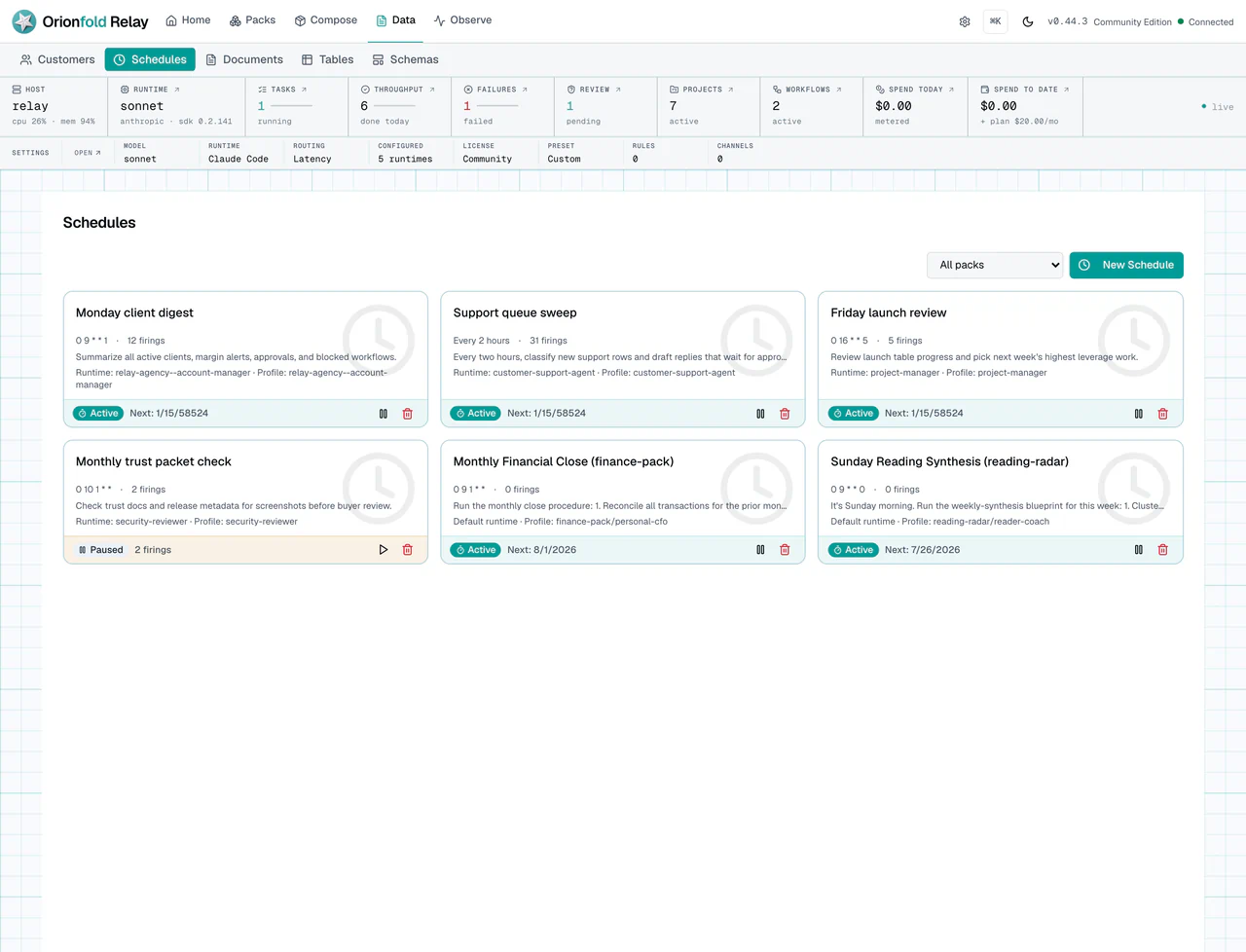
Schedules are for routines. A weekly review, a daily support sweep, or a recurring report should not depend on a person remembering to start it. Before you trust a schedule, read its cadence, state, and source. A schedule that ships with a pack should stay stable across pack updates.
Open Apps to see pack operating surfaces that combine tables, workflows, schedules, and views.
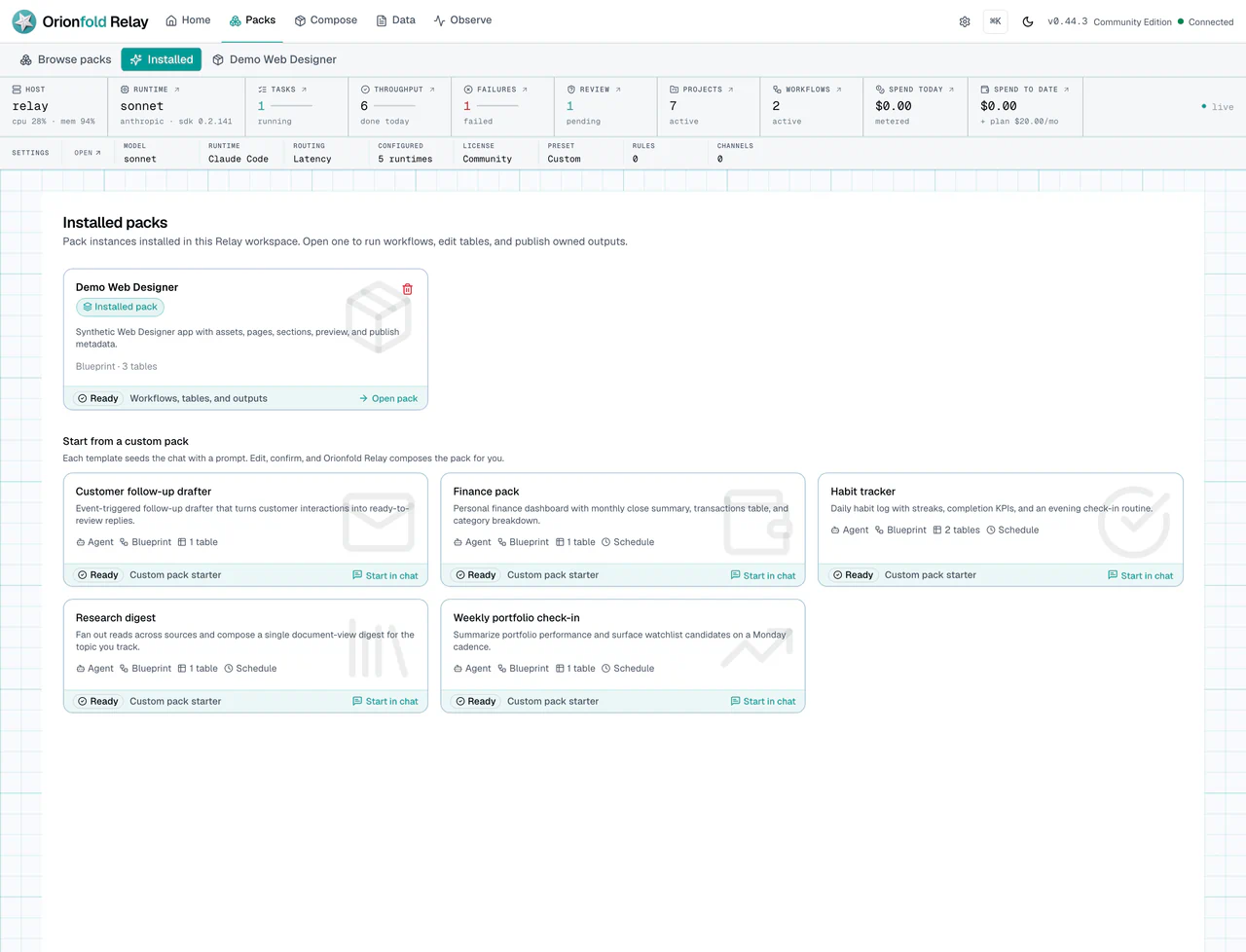
Apps are where the pieces become a workbench. An app can show KPI tiles, workflow cards, tables, manifests, and primitive-specific sections. If a table edit changes app data, the app surface should reflect that state after the update.
What To Do When The State Looks Wrong
If a row does not trigger work, check that the required fields exist in the row. Then check whether the trigger expects defaults.
If a schedule does not run, open the schedule and check its state before changing the cadence. A disabled or blocked schedule needs a different fix than a wrong cadence.
If an app view looks stale after table edits, reload the app surface and confirm the table update saved. Table mutations should invalidate affected app-runtime cache.
If Render mode chooses the wrong title or treats a field as the wrong kind of content, switch back to Row so you can see every column at once. If you own the Pack, schema, or composed definition, give that column an explicit display role. The current table-column form does not expose display-role editing for an existing operator-created table.
If a schema does not match the table you expected, do not force the workflow forward. Fix the table shape first.
If a row trigger starts too much work, review the trigger contract. Row inserts are convenient, but they should still match the business event you intend.
What This Changes In Daily Work
The daily habit is to put repeated work into structured records. A table row is easier to audit than a loose chat message. Render mode helps an operator understand the record, while Row mode helps an editor work across columns. A schedule is easier to review than a calendar reminder. A schema is easier to reuse than a copied column list.
For an SMB operations lead, this means support, leads, grants, renewals, and content can each have a clear local data source. For an app builder, it means pack-backed screens can be composed from known parts. For a solo founder, it means small routines do not disappear into memory.
Relay becomes more useful when data and work stay connected.
Where To Go Next
Next, read Watch Runs, Costs, And Budget Signals to review what those automations did.