What This Chapter Helps You Do
This chapter helps you start a workflow, read its state, answer a human checkpoint, and recover when a run stalls or fails.
The Operator Story
Brightline Books has a customer support queue. Some replies can be drafted by an agent, but refund-policy replies still need a person to approve them. Northstar Automation Studio wants that process to run the same way every time: read the row, draft the reply, pause for review, and continue only after a person answers.
That is a workflow with a human checkpoint. It is repeatable, but it is not fully automatic. This distinction matters. A small business often wants speed, but it also wants control over customer-facing actions, spend, and risky tool use.
Relay workflows help you turn repeated work into a visible process. The important word is visible. A workflow should not vanish into the background. It should show whether it is running, waiting, paused, completed, failed, or stalled.
The seeded workspace uses this mix on purpose. It includes active workflows, completed workflows, failed workflows, paused workflows, and draft workflows. That lets the guide show the real operating problem: a business rarely has one clean state. It has several states at once, and the operator has to decide which one deserves action.
What This Part Of Relay Is For
A workflow is a path for work. It can run steps in order, ask a person a question, wait for approval, create tasks, or coordinate more complex patterns. Relay workflows support sequence, planner-executor, checkpoint, parallel, loop, and swarm patterns. Blueprints, the reusable templates you start from, cover the sequence, planner-executor, and checkpoint patterns.
Human checkpoints are part of the product, not an exception. They let a workflow pause when an operator should decide. A support reply, a budget-sensitive research step, a publish action, or a client-facing note may all need that pause.
The main rule is simple: do not treat every stopped workflow as broken. A workflow may be waiting because it is designed to wait.
Walk The Screen Like An Operator
Open Workflows. Use the list to find the process you want to run.
What you should notice:
- Workflow rows or cards.
- Run, Re-run, or Stop actions where valid.
- Status labels that match the current execution state.
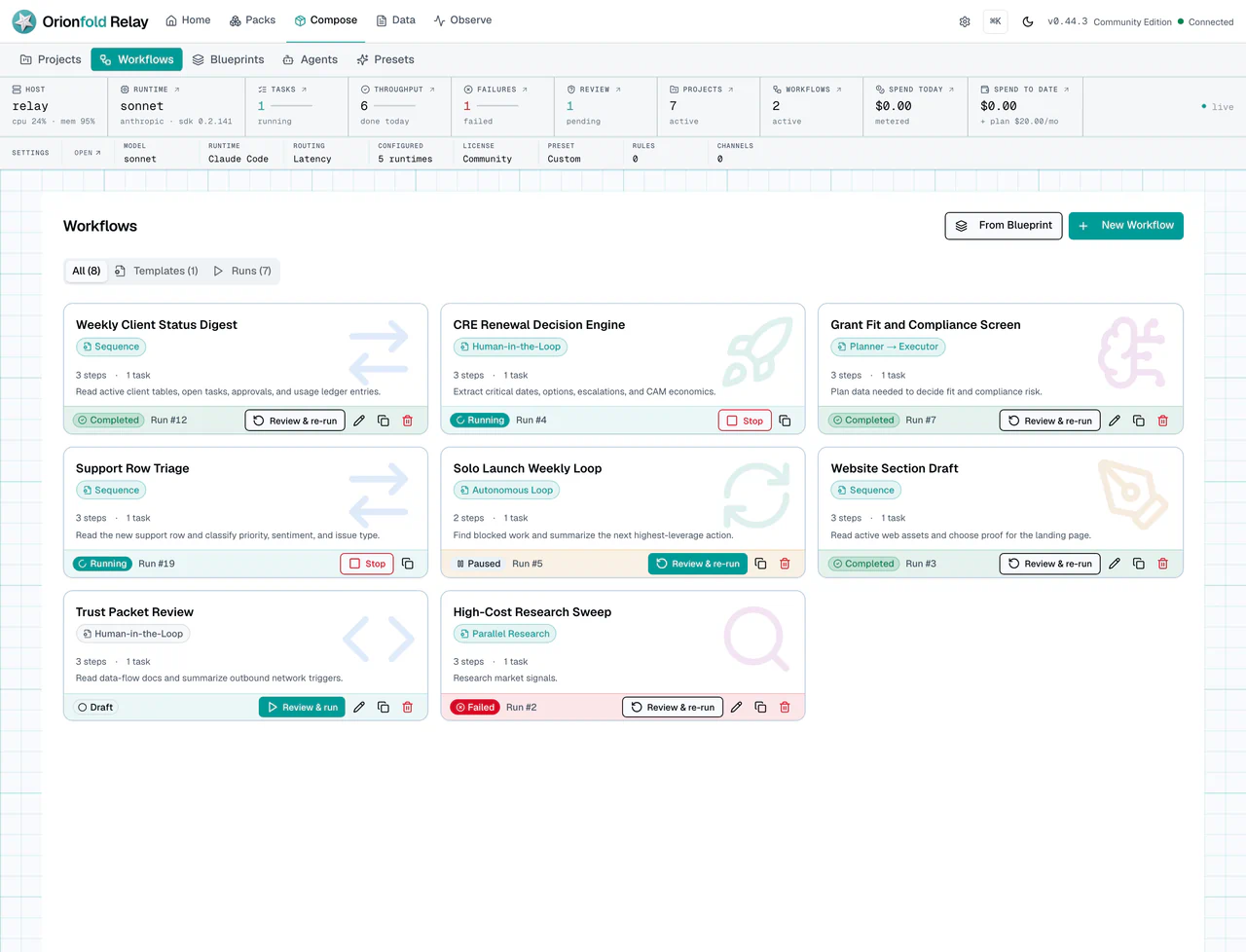
This screen is a control surface. Read state before you click. A draft workflow is not the same as a failed workflow. A running workflow should expose Stop when stopping is valid. A completed workflow may offer Re-run. A waiting workflow should point you to the human action that blocks it.
When a workflow belongs to a project, its detail header names that project and links back to it. The same Project choice is available when you create or edit the workflow. Choosing None clears the link; leaving a workflow unlinked is valid for intentionally global work.
The Input Documents picker follows that project context. Ready files can be selected as workflow context. Files that are uploaded, processing, or in error remain visible with their real state, but Relay disables selection until they are ready. This keeps “not ready yet” separate from “missing.” To bring a new file into the pool, upload it from Documents with the same project selected.
If you do not have the right workflow yet, open Blueprints. A blueprint is a reusable workflow pattern.
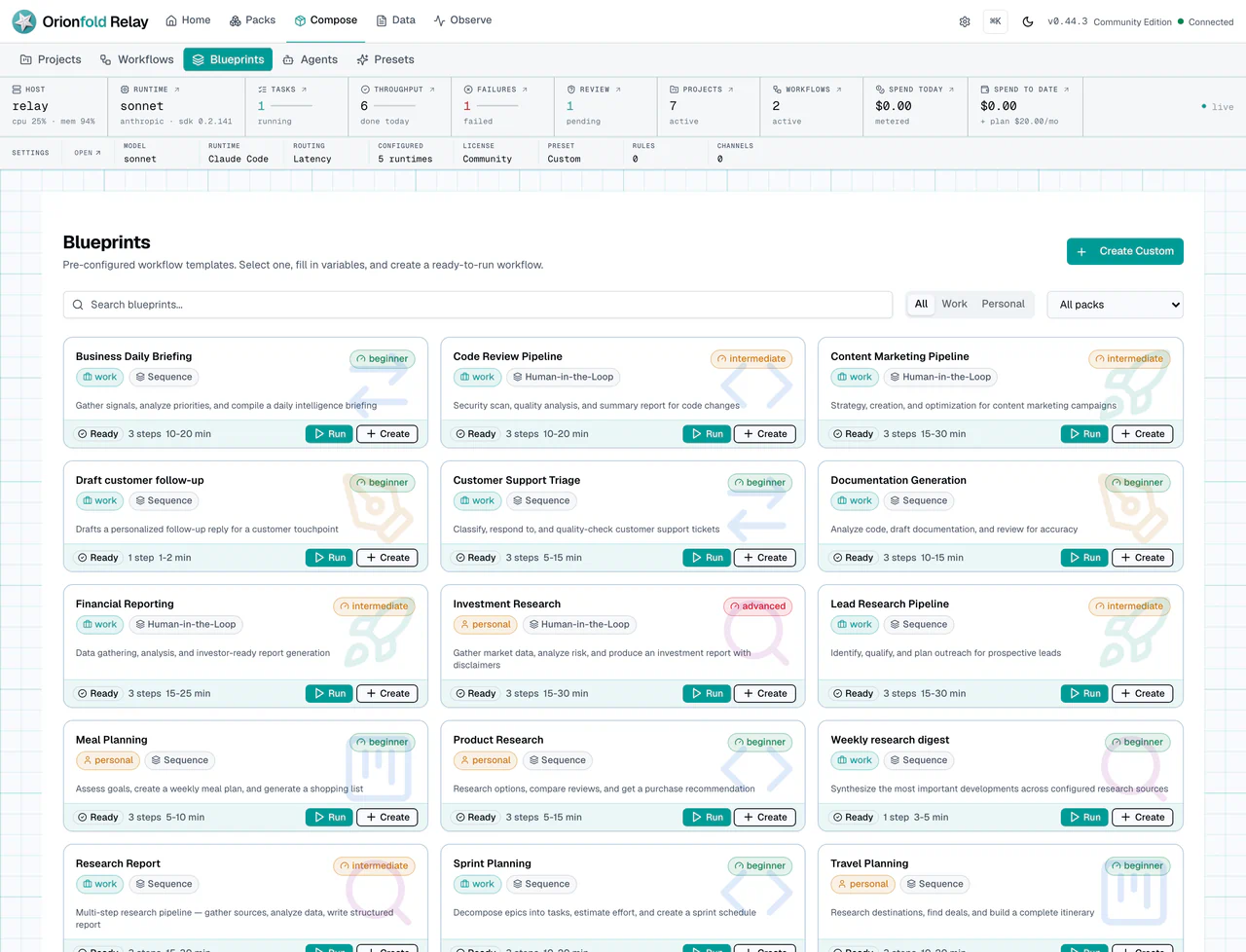
Blueprints help you start from a known shape. They are useful when you need a process, not just a one-time task. Some blueprints can run directly. Others can create a draft workflow that you review before using. The difference matters because a direct run acts now, while a draft gives you time to configure.
Run The Work Carefully
Start a workflow only after you know what state it is in and what it may touch. If it asks a question or needs approval, open Inbox and answer the visible item.
What you should see:
- A running workflow shows running state.
- A workflow waiting on a person shows waiting state.
- Inbox shows the question or approval that blocks the next step.
- Tasks created by the workflow link back to workflow context.
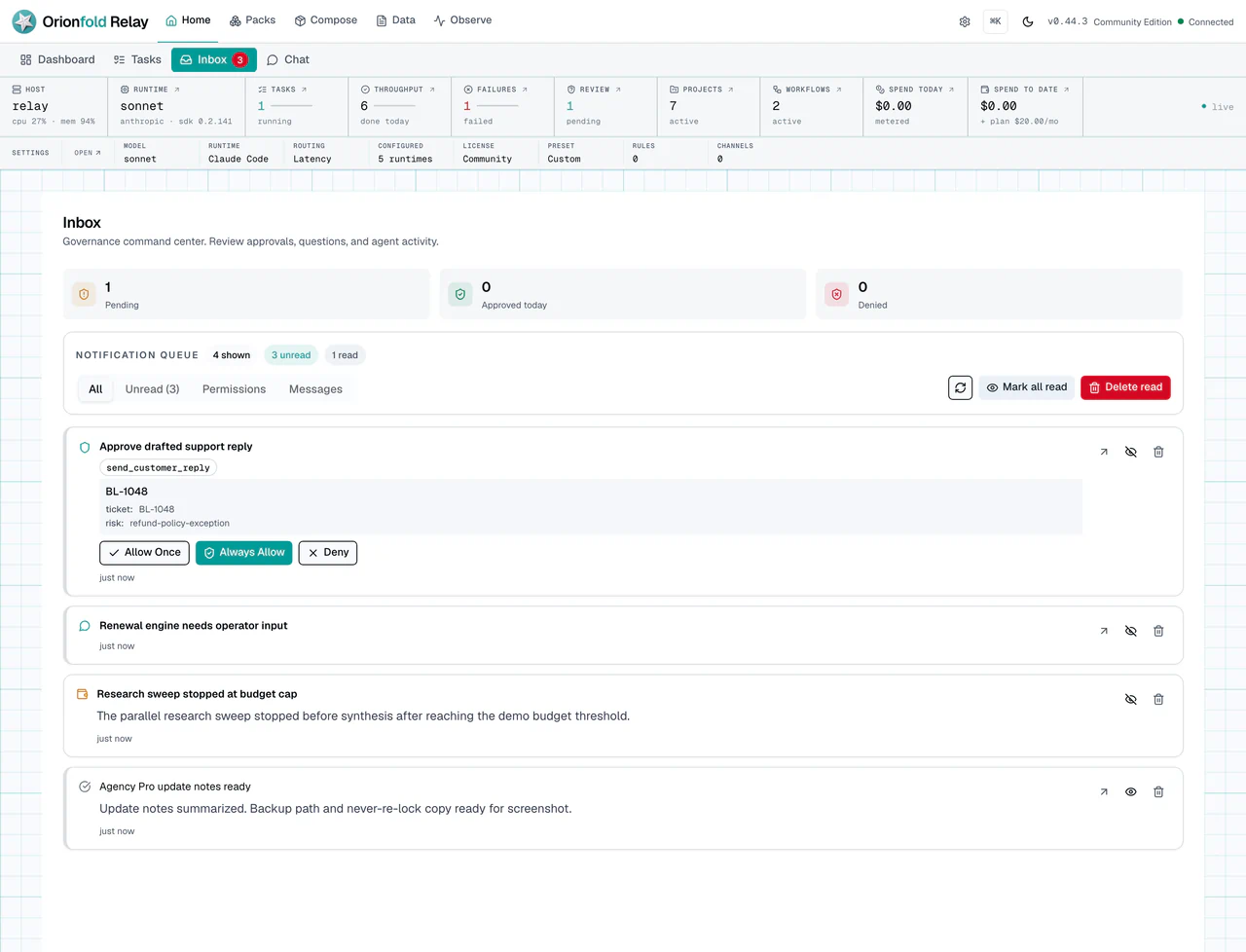
Inbox is where human control becomes concrete. The workflow is not stuck if it is waiting for an answer. It is doing what it was designed to do. Read the approval, decide, and answer from the visible item.
After you answer, check Tasks. Workflow-created work should not become invisible.
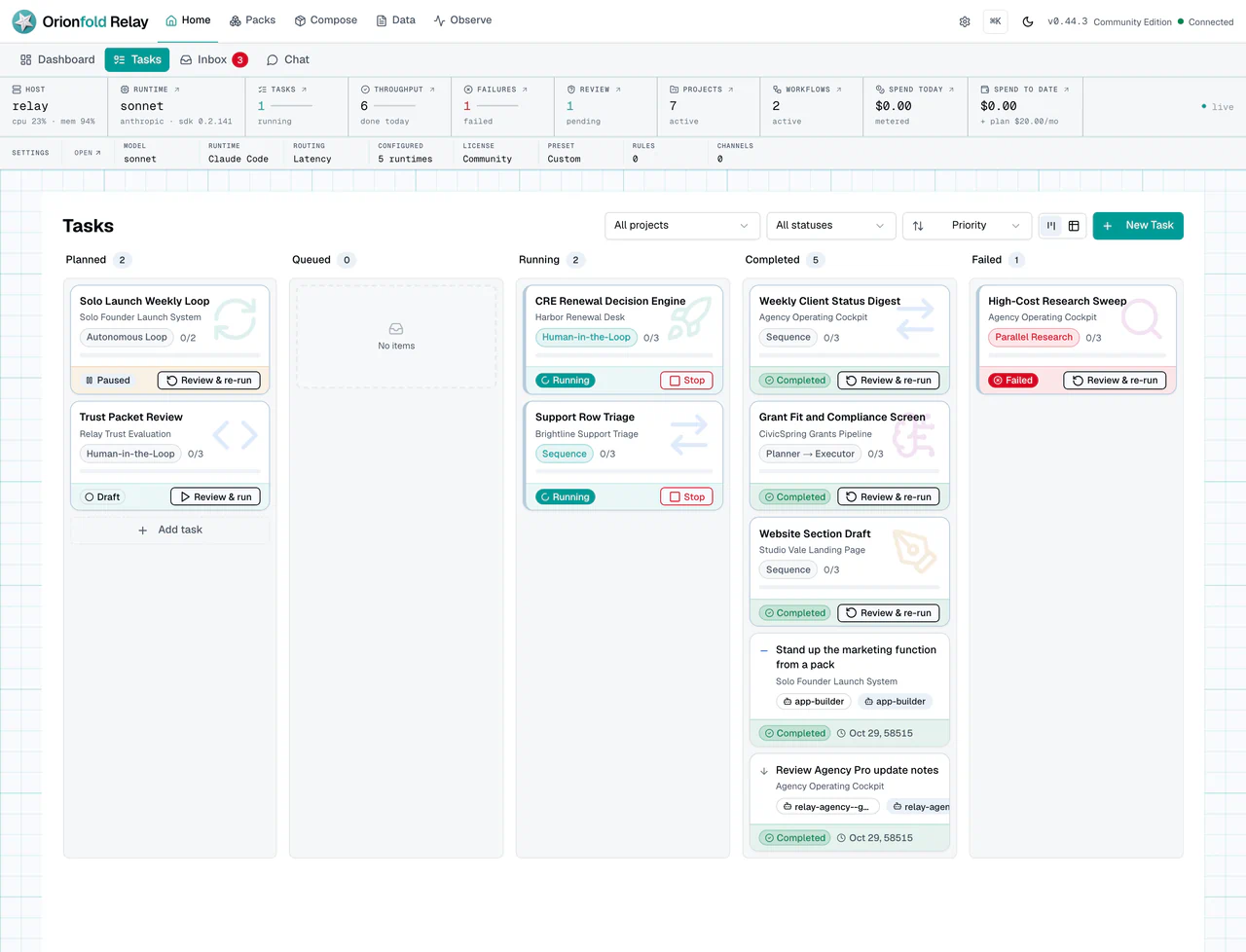
The task board shows whether the workflow created follow-up work, moved work into a different state, or left something queued. This is where an operator can see the operational effect, not only the workflow definition.
Open Monitor when you need the run trail.
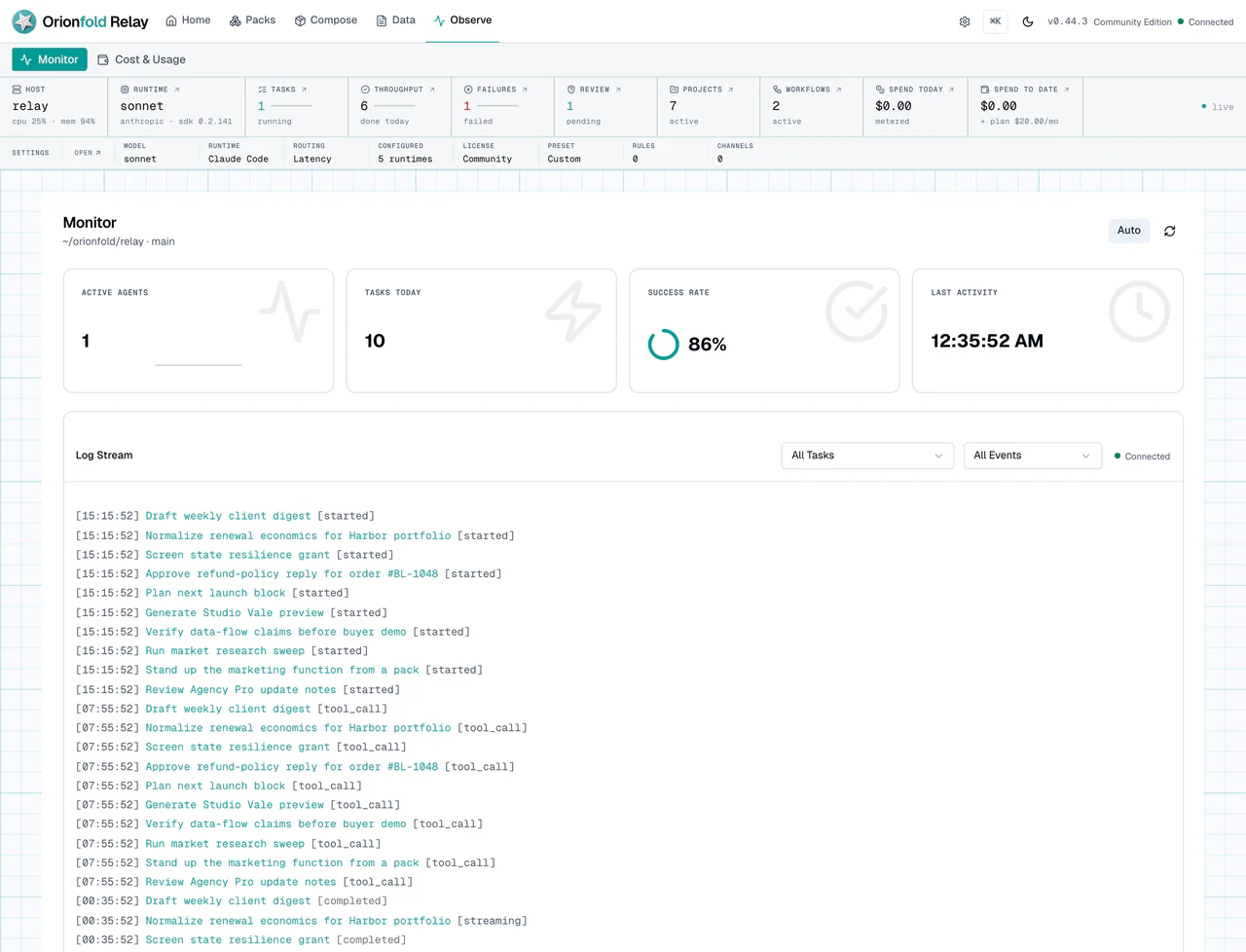
Monitor is the audit screen. Use it when a workflow fails, stalls, or behaves in a way you do not understand. A good failure path should give you enough context to decide the next move.
When you want to practice this control loop before using customer work, open the Relay Operator Workshop. Its preflight is read-only. It checks the Relay version, data-directory access, built-in fixture integrity, and configured run options without installing the starter or calling a model provider.
If preflight is ready, choose Install isolated starter. Relay creates an idempotent local starter with a table, app, project, and governed workflow. The capstone tracks five checkpoints: inspect the starter, add a learner-owned process row, confirm the human and success boundary, produce a terminal Operations Receipt, and retain the result.
The workshop gives you two honest run paths. You can run the workflow through a configured runtime, or use Run deterministic rehearsal when a model provider is unavailable. The rehearsal is labeled in the interface and in exported evidence. It does not pretend that a model call occurred.
After a terminal receipt exists, choose Download completion bundle. Relay builds a redacted archive containing the learner-owned app Pack, the Operations Receipt, selected outputs, hashes, and a limitations file. Credentials, absolute local paths, unrelated workspace data, and unselected transcripts are excluded. An active workshop also appears as a progress module on Home when that module is enabled.
What To Do When The State Looks Wrong
If a workflow says waiting, check Inbox before you click Run again. Starting another run may duplicate the process.
If a workflow says stalled, open Monitor and read the last visible run state. Stalled active rows can happen when persisted state no longer reflects live child tasks.
If a workflow failed, keep the error text. Relay should show the failure path so you can decide what to fix.
If a workflow shows the wrong project after an edit, stop before running it and save the intended Project again. A successful save should retain a set, changed, or cleared project link. If Relay cannot save the workflow’s document context, it reports that failure instead of navigating away with a success message.
If a blueprint run creates a draft instead of running, open the draft. That may be the safer path when variables or configuration need review.
If a Stop action appears, use it only when you understand the effect. Stopping a workflow may leave child tasks or approvals that still need review.
If the same workflow keeps asking for the same approval, do not assume the approver made a mistake. Check the run state. A repeated prompt can mean the workflow retried, the browser refreshed during a stream, or the previous answer did not reach the waiting step. The safest next move is to inspect Inbox and Monitor together.
If Workshop preflight fails, use the named recovery beside the failed check. Do not force installation into an incompatible version or unwritable data directory. If the starter conflicts with an existing app or project, move to an isolated workspace or resolve the named conflict. Relay will not overwrite the existing item.
What This Changes In Daily Work
The daily habit is to treat workflows as visible operating processes. You do not run them blindly. You read the state, start the right process, answer checkpoints, and inspect the result.
For an agency, this keeps client-facing output under review. For an SMB team, it lets repeatable work move without losing human judgment. For a solo founder, it prevents one-off chat work from replacing a routine that should be reusable.
Relay workflows are useful because they combine repeatability with human control. The goal is not full automation at any cost. The goal is work that can move, pause, explain itself, and recover.
This is also how workflows become teachable inside a team. A new operator can read the list, open the waiting approval, and understand why the process paused. That is better than a hidden script that only one person understands.
Where To Go Next
Next, read Use Tables, Triggers, And Schedules to connect workflows to structured records and recurring work.