 ORIONFOLD
All elementsFlow Elements / Agency · 12 elements
Twelve things Flow can do to your words, each waiting for your yes
Twelve actions on your words, from proofread, summarize and translate to tables, charts, sign-offs and forms. Each waits for your yes.
Agency1 of 12
Proofread
Fixes spelling, grammar and punctuation; shows every change
- What it needs
- Text in the Editor
- In this walk
- Nothing to change in 9 s
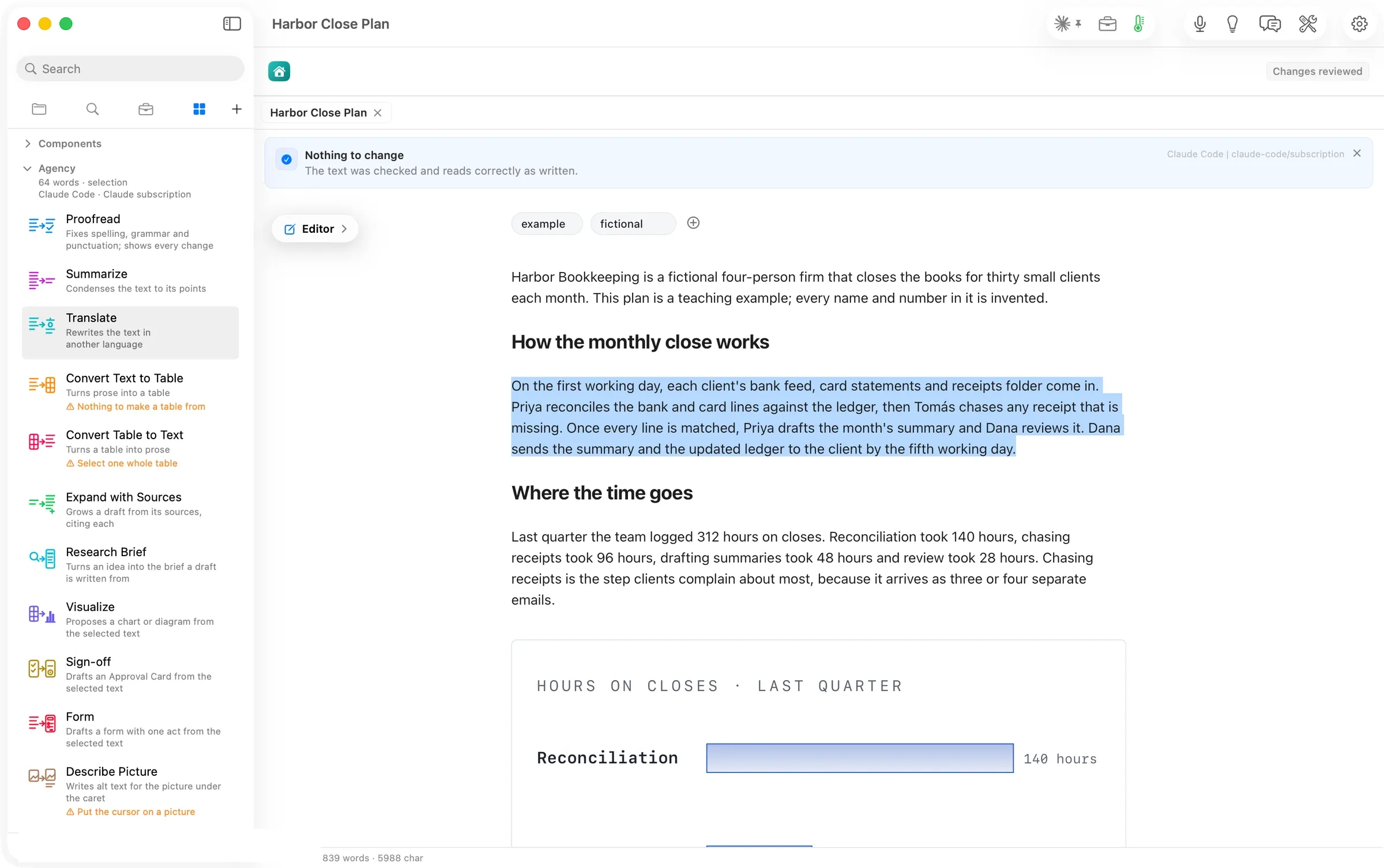
On a clean paragraph Proofread says so: Nothing to change. The text was checked and reads correctly as written. No review opens, because there is nothing to keep. When it does find something, every change is shown against the original in Review Changes.
Agency2 of 12
Summarize
Condenses the text to its points
- What it needs
- Text
- In this walk
- Whole plan to one paragraph in 8 s, figure kept
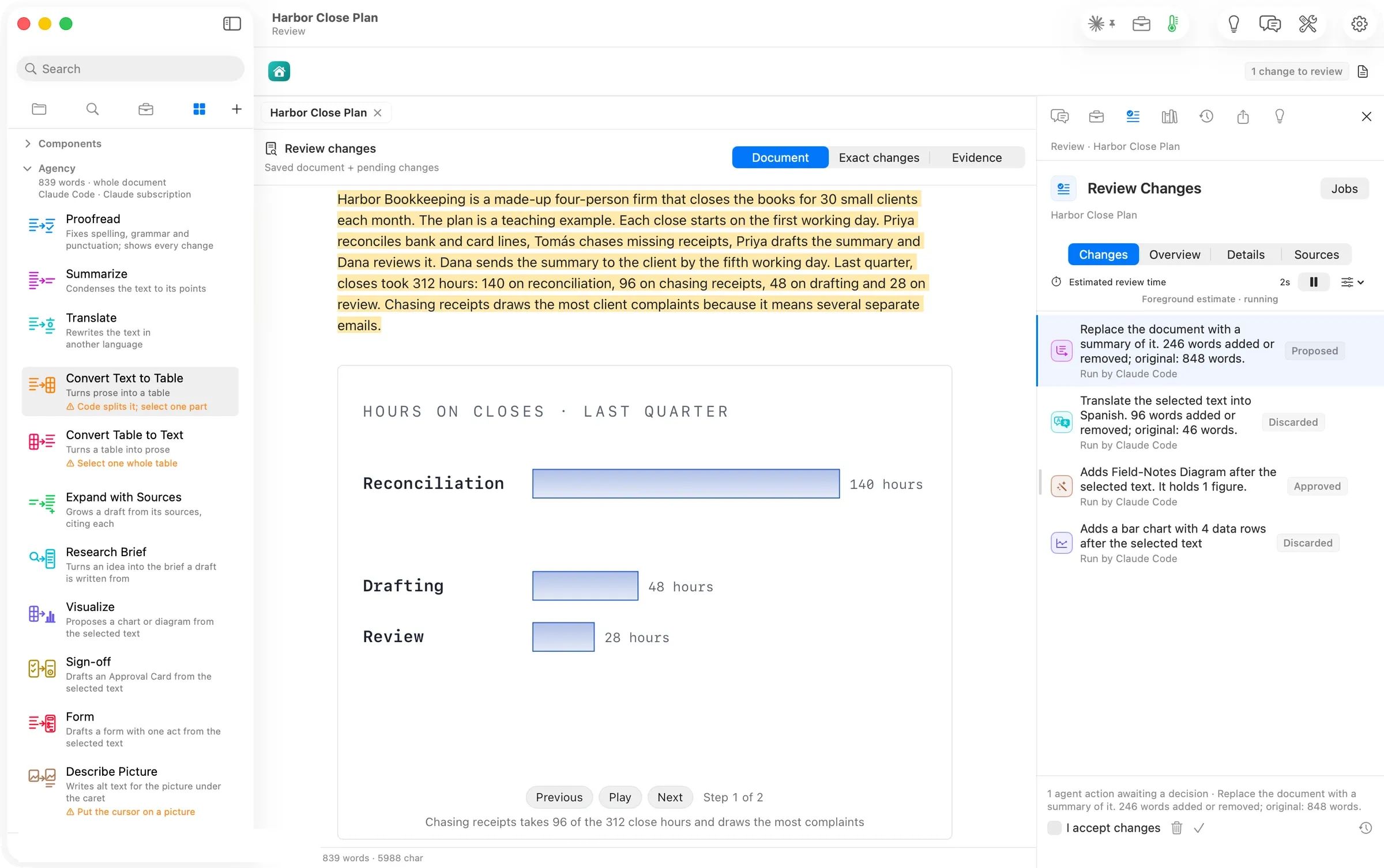
With nothing selected, Summarize read the whole plan and proposed a one-paragraph version. It covers the firm, the close, the hours, the complaint. The figure in the plan was carried through untouched.
Agency3 of 12
Translate
Rewrites the text in another language
- What it needs
- Text, and a language from its menu
- In this walk
- Spanish in 8 s
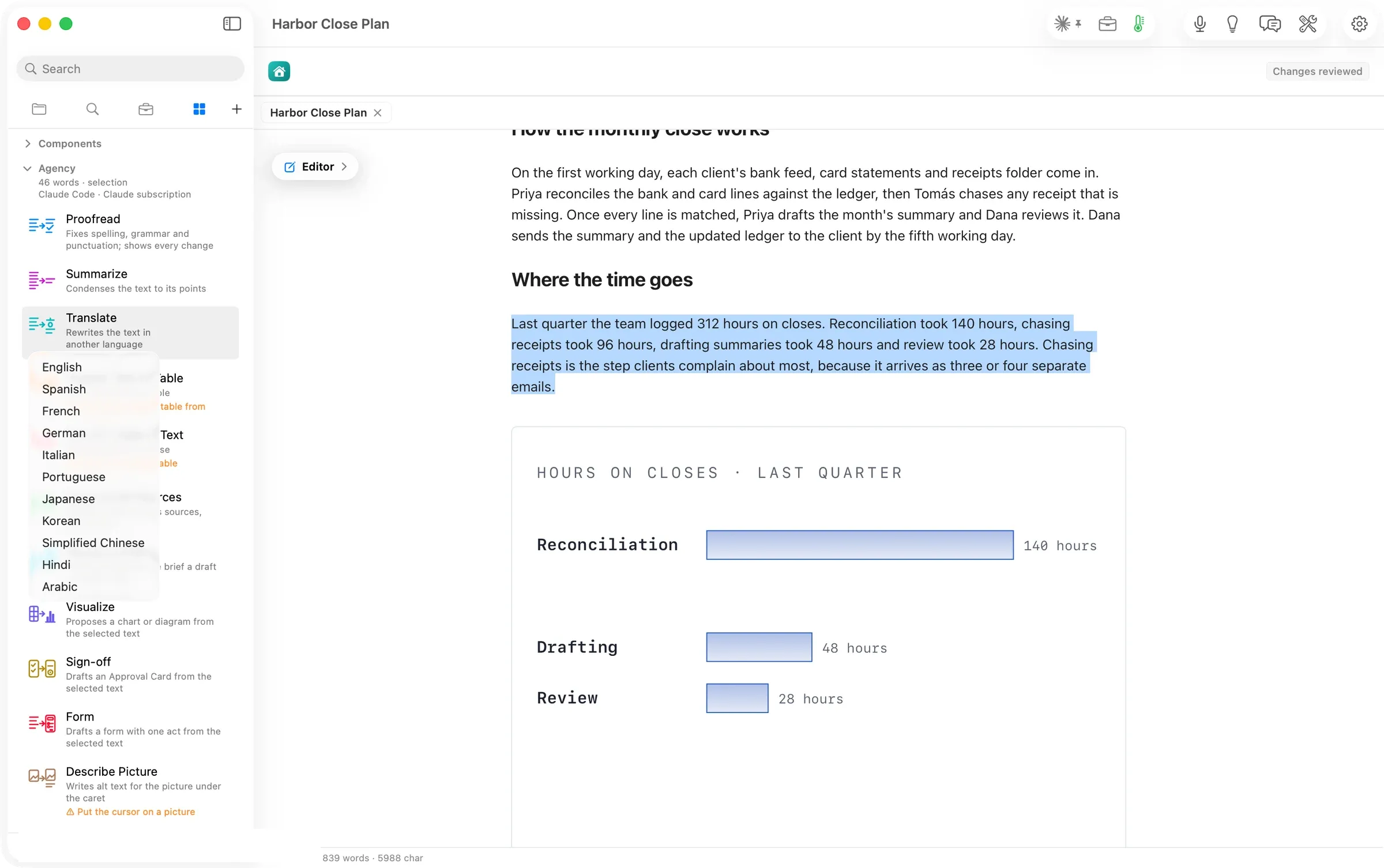
Translate opens a menu of eleven languages under its card.
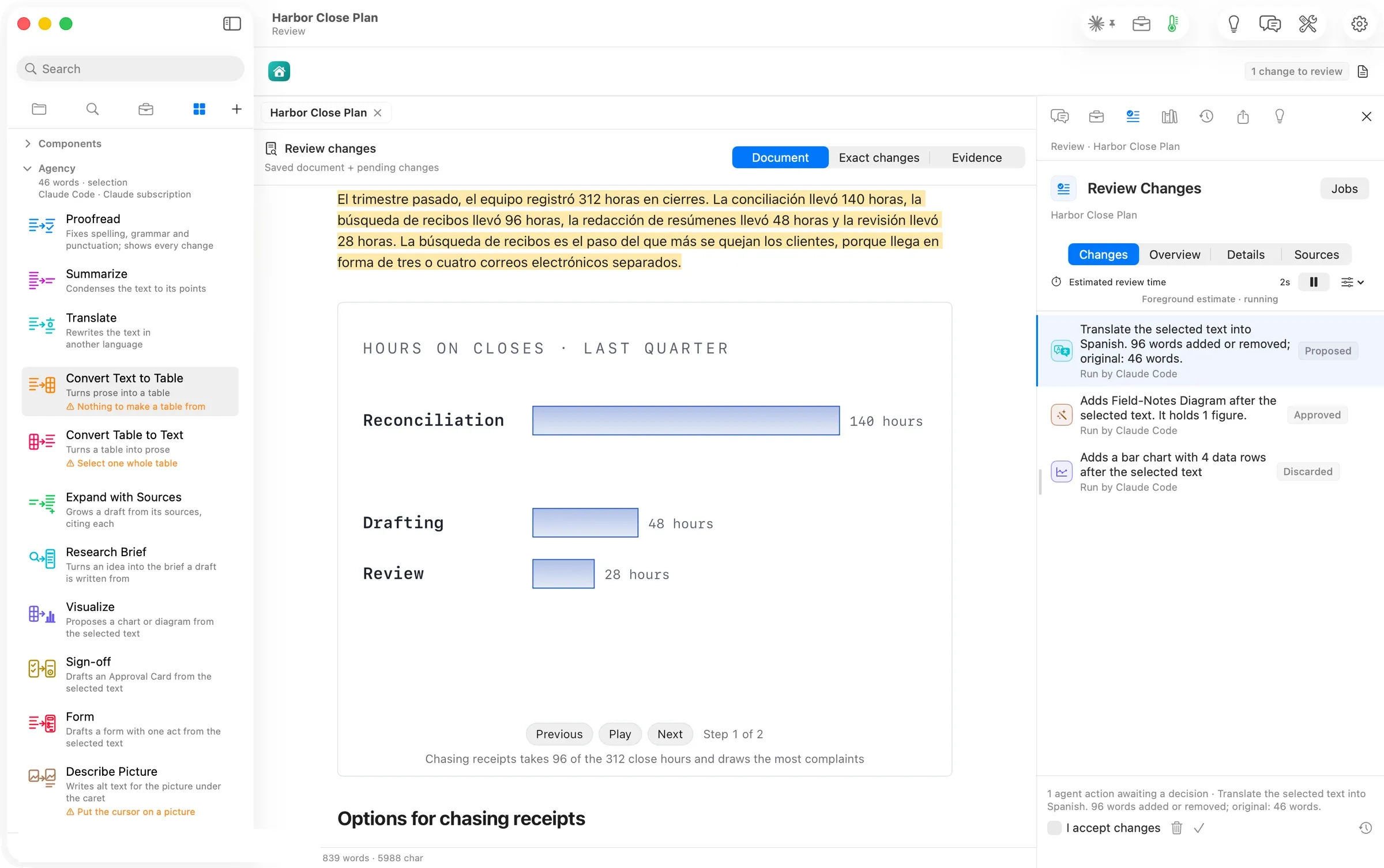
The selected paragraph came back in Spanish, with every number intact. Review says how much changed: 96 words added or removed; original: 46 words.
Agency4 of 12
Convert Text to Table
Turns prose into a table
- What it needs
- Prose with rows in it, such as a list, in one place
- In this walk
- Four steps to a four-column table in 8 s
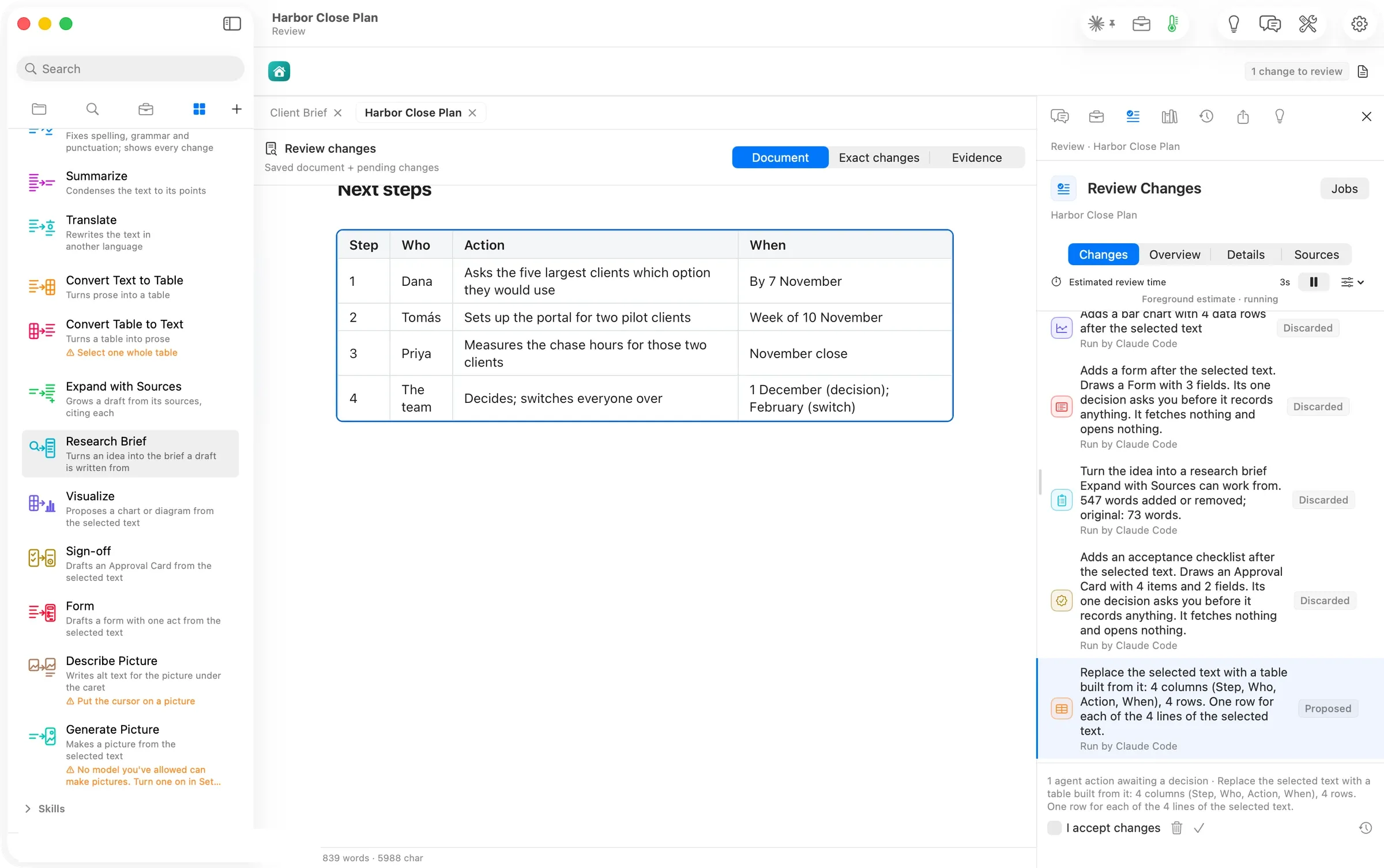
The four numbered next steps became a table with the columns the text implied: Step, Who, Action, When. On a paragraph with no rows in it, the card says Nothing to make a table from before you press it.
Agency5 of 12
Convert Table to Text
Turns a table into prose
- What it needs
- One whole table selected
- In this walk
- Not run
Agency6 of 12
Expand with Sources
Grows a draft from its sources, citing each
- What it needs
- A draft and the sources it should read
- In this walk
- Not run
Agency7 of 12
Research Brief
Turns an idea into the brief a draft is written from
- What it needs
- An idea, a paragraph or two
- In this walk
- 547-word brief in 48 s
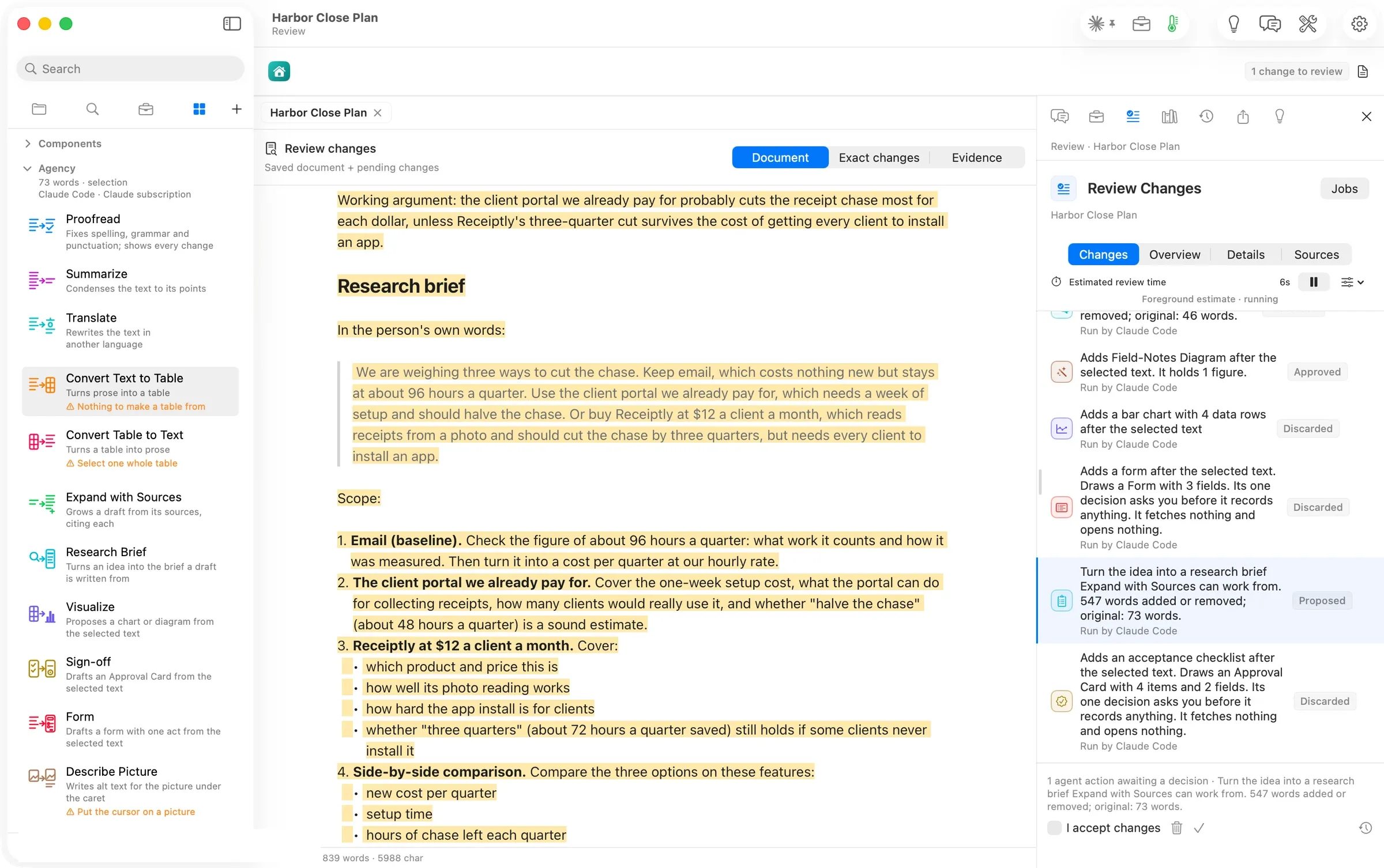
Research Brief took the three options for chasing receipts and wrote the brief a draft would be written from. It opens with a working argument and quotes the person’s own words. Then it lays out a scope for each option and the comparison to make. It compares new cost per quarter, setup time and hours of chase left. Review counts 547 words added; it took 48 seconds. Expand with Sources is the action that then writes the draft from those sources, citing each.
Agency8 of 12
Visualize
Proposes a chart or diagram from the selected text
- What it needs
- Text with numbers or steps
- In this walk
- Bar chart with 4 rows in 8 s
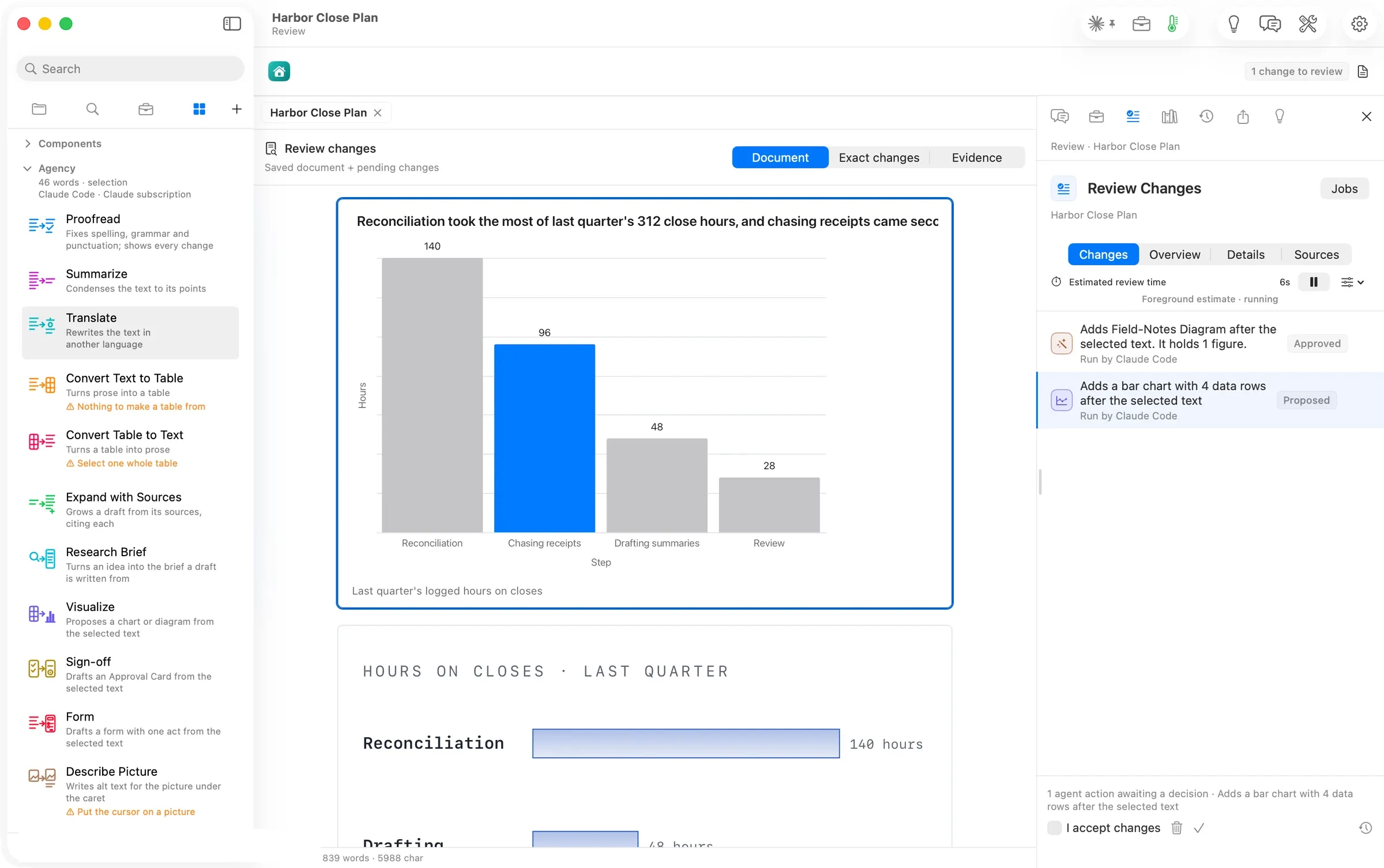
Visualize read the paragraph about where the hours go and proposed a bar chart with the four steps, the one the passage stresses in the accent colour, placed after the paragraph. A very long title can run past the chart’s edge in Review; you can shorten it in the chart’s editor after you keep it.
Agency9 of 12
Sign-off
Drafts an Approval Card from the selected text
- What it needs
- Text that lists what is to be accepted
- In this walk
- Card with 4 items and 2 fields in 7 s
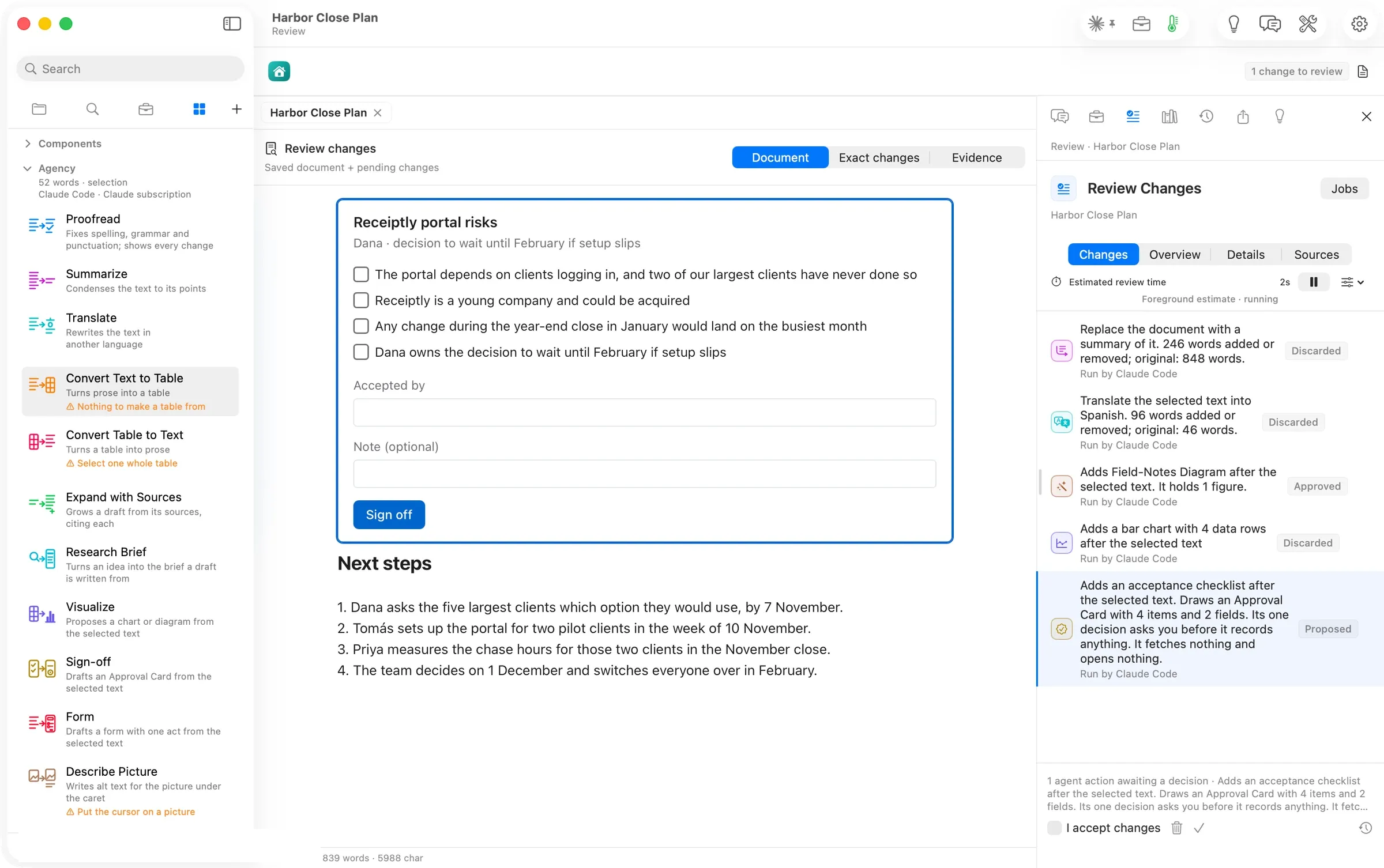
On the risks paragraph, Sign-off drafted an Approval Card. It holds one item per risk, an Accepted by field and a Sign off button. The Components article shows how signing records a signature beside the document.
Agency10 of 12
Form
Drafts a form with one act from the selected text
- What it needs
- Text that asks for a decision, a rating or an answer
- In this walk
- Decision form, 3 options, in 8 s
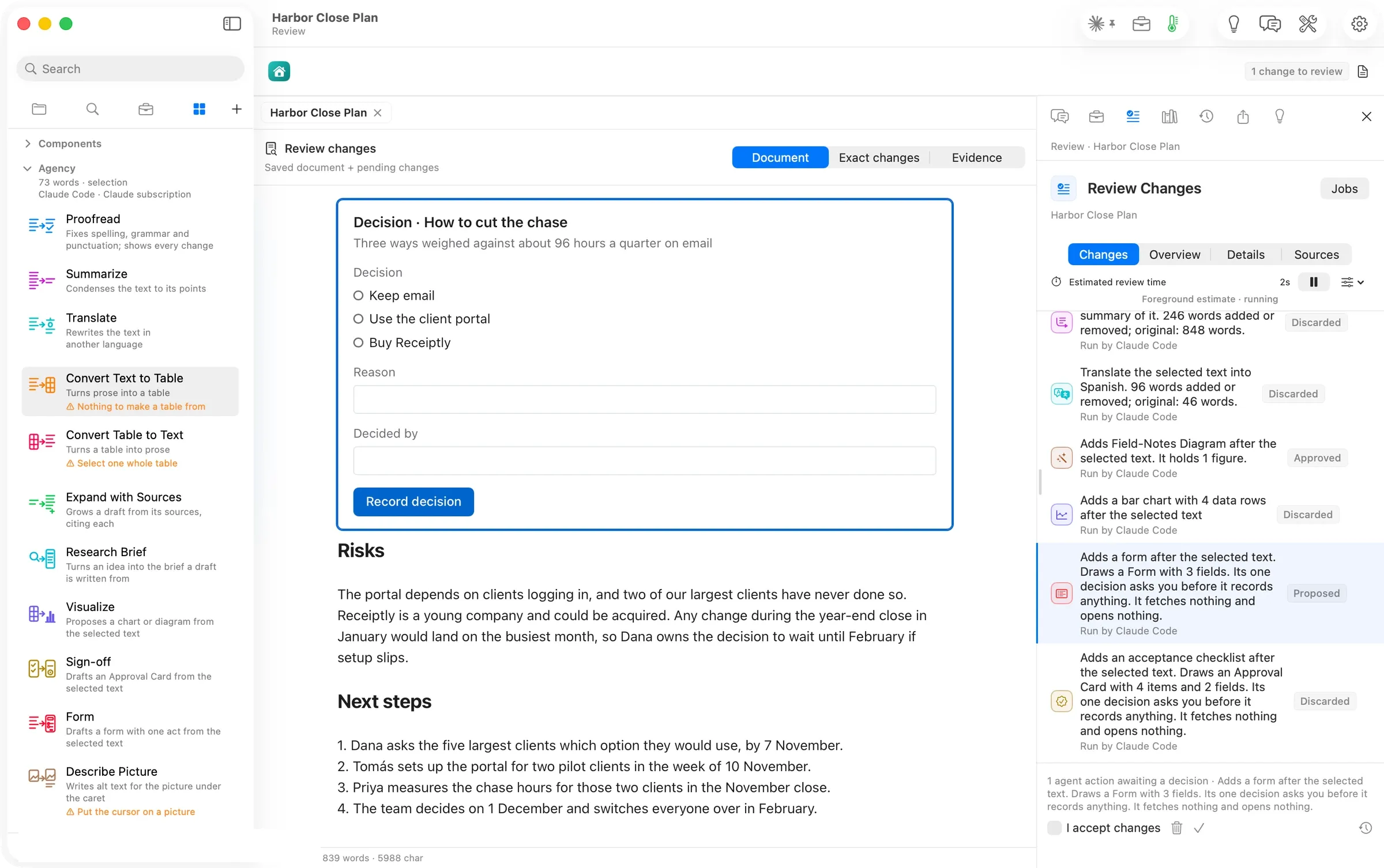
On the options paragraph, Form drafted a decision form. It holds the three options as choices, a Reason, Decided by and Record decision. Review spells out what it is: Its one decision asks you before it records anything. It fetches nothing and opens nothing.
Agency11 of 12
Describe Picture
Writes alt text for the picture under the caret
- What it needs
- A picture under the caret, and a model that reads pictures
- In this walk
- Not run: Flow hasn't checked whether this model reads pictures.
The walk covers Describe Picture together with Generate Picture.
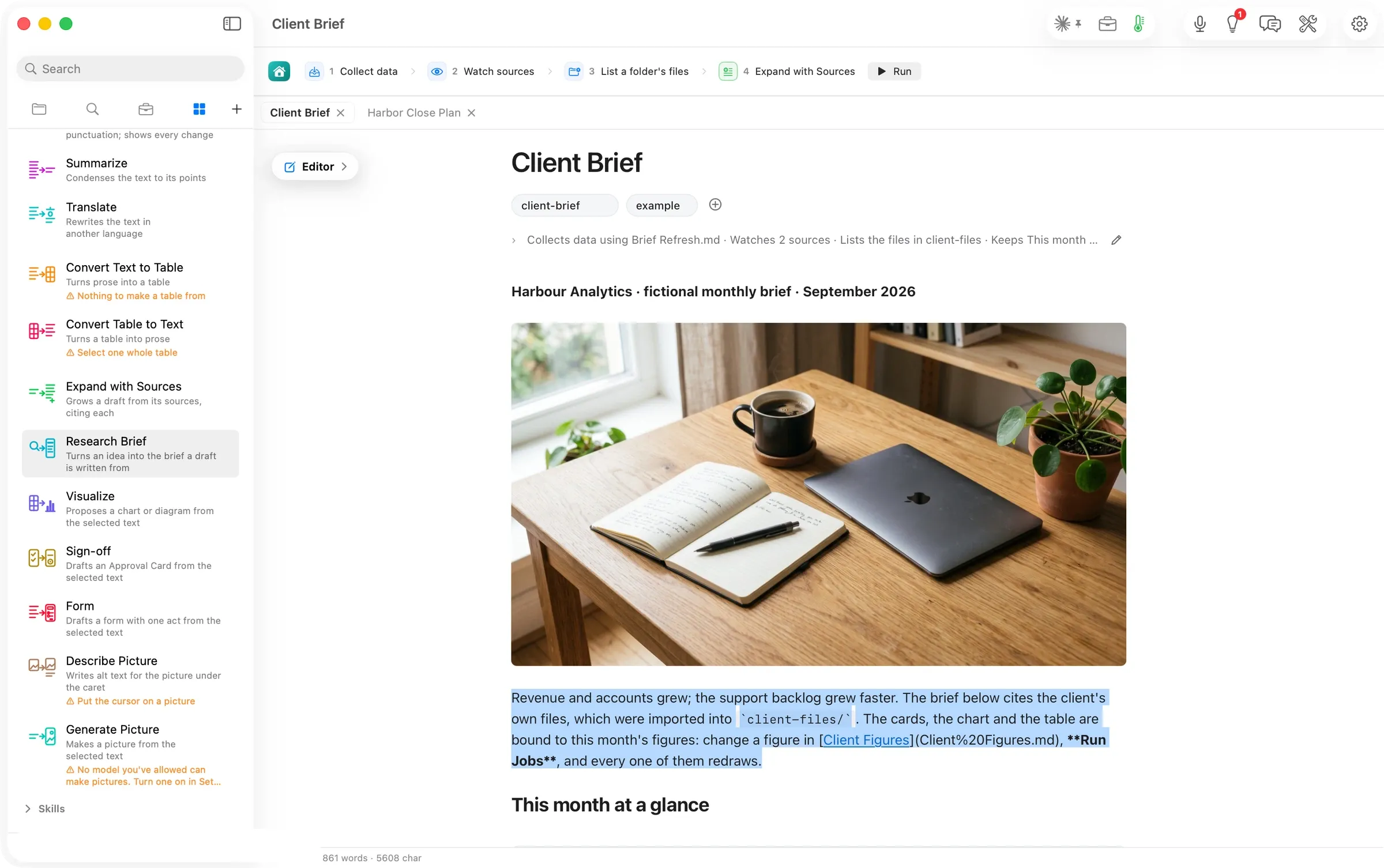
Describe Picture writes the sentence a screen reader says for the picture under the caret, and Generate Picture makes a picture from the words you select. Both need a model that handles pictures. On this walk’s route neither had one, and each card said so in plain words instead of running and failing.
Agency12 of 12
Generate Picture
Makes a picture from the selected text
- What it needs
- Words describing a picture, and a picture model turned on
- In this walk
- Not run: No model you've allowed can make pictures.
The walk covers Generate Picture together with Describe Picture.
Describe Picture writes the sentence a screen reader says for the picture under the caret, and Generate Picture makes a picture from the words you select. Both need a model that handles pictures. On this walk’s route neither had one, and each card said so in plain words instead of running and failing.
Elements ▸ Agency lists twelve actions a model can take on your text. Fix it, shorten it, translate it, turn it into a table or back, grow it from sources, brief it, chart it, or turn it into a checklist, a form or a picture's description. Select a paragraph and press a card, and the result waits in Review Changes. In this walk eight of the actions ran on a five-section plan. Seven came back in under ten seconds and the research brief in under a minute, all on the Claude subscription at no extra cost. Nothing changed until it was kept.
What Flow does
Every model action Flow has is one card in the sidebar, and it tells you what it will touch before you press it. Open Elements (⌘5) in Orionfold Flow and the Agency section lists twelve actions, each with a drawing and one line. Its heading says what an action would read, where it would run and on which model: 46 words · selection · Claude Code · Claude subscription. An action that can’t use what you have says why on its own row, in orange, before you waste a run. Press a card and the result arrives in Review Changes, highlighted where it lands, with a sentence saying what it did and how much it changed. Keep it, or discard it and the document is as it was.
The answer first
- Open the document in the Editor and select the passage. With nothing selected, an action reads the whole document.
- Press ⌘5 and look at the Agency heading. It says how many words, selection or whole document, and the model it will use.
- Press the card. Translate and Convert Table to Text pop a menu first. A card with an orange line can’t run on what you have, and the line says what it needs.
- Review the result in Review Changes: tick I accept changes and press the check to keep it, or press the bin to discard it. Proofread with nothing to fix says Nothing to change and opens no review.
- From the Reader, a card switches to the Editor and runs there; the Agency heading says so.
The job
A model is most useful on one paragraph at a time. That means the one that runs long, the one with numbers that want a chart, the one that has to go to a Spanish-speaking client. Asking a chat window means copying the paragraph out, pasting the answer back and hoping nothing else changed. Agency runs on the passage in place, shows the change against the original, and changes nothing until you say so.
The numbers
| Figure | Value | Status and source |
|---|---|---|
| Agency cards | 12 | verified: the panel’s list, read 14:26 |
| Translate’s languages | 11 | verified: the menu, captured 14:22 |
| Press to Review: Visualize, Translate, Summarize, Convert Text to Table, Form | 8 s each | verified: clock, polled every 3 s |
| Press to Review: Sign-off | 7 s | verified: clock |
| Press to result: Proofread | 9 s | verified: clock |
| Press to Review: Research Brief | 48 s | verified: clock 14:24:22 to the review |
| Translate’s change | 96 words added or removed; original 46 | verified: Review’s line |
| Research Brief’s length | 547 words | verified: Review’s line |
| Actions run in this walk | 8 of 12 | verified: journal |
| Cost of every run | $0 extra, on the Claude subscription | verified: the heading’s route and each review’s Run by Claude Code |
| Machine | MacBook Pro M3 Max, 36 GB, macOS 26.6 | verified |
Walked on: Orionfold Flow review build elements-1 (dev, main d43eb7f2), macOS 26.6, MacBook Pro M3 Max 36 GB, window 1512×949; walked 2026-10-26 14:15–14:27 PDT by the agent in an away session, one Flow instance, every run on Claude Code with the Claude subscription.
Data: Harbor Close Plan, a fictional plan for a four-person bookkeeping firm written for this walk, and the Flow Guide's Client Brief (fictional). Every proposal was discarded after its shot. The account row is painted over in every shot.
Written by the Flow product team from the walk's own records. Numbers are labelled verified, derived, assumed or unknown.
MORE ELEMENTS
Another group,
walked the same way.
Elements: everything a document can take, one card at a time
Every block, action, skill and chart kind in one sidebar, and Ideas naming the skill that fits each section.
Fifteen blocks a document can hold, each written as a few plain lines
Fifteen blocks a document can hold, from a checklist a client signs to a chart beside its figures. Each stays plain text.
Nineteen skills that draw your document's case for you
Nineteen skills that turn a passage into a decision brief, a roadmap, a register or a figure you step through.
Fifty-four ways to draw your numbers, and what each one needs
Fifty-four chart and diagram kinds, each with the data it takes. Switch kinds and keep your data, on your Mac, with no model involved.