 ORIONFOLD
All pathsFlow 4.0 path / Teach your expertise
Give your Fold a working memory
“Put the decision in the first sentence” is easy to say once. It’s easier still when your Fold can carry it into the next brief.
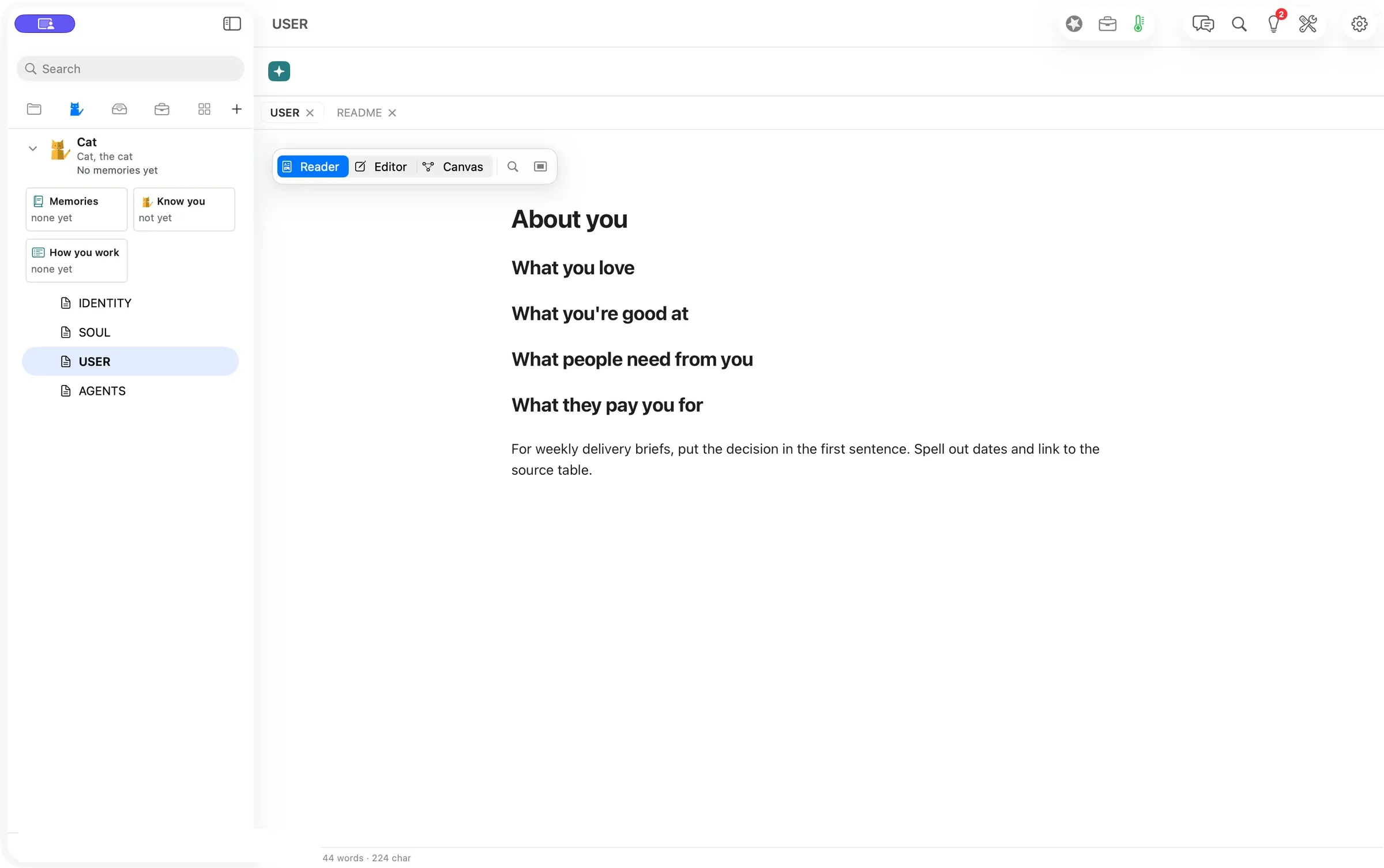
Your personal Fold gives the way you work a place of its own. Put standing instructions in your Fold’s files, or use Remember in Flow Pro to keep a preference from Chat. Flow can bring relevant saved memories into later work. Teach it once, and your Fold keeps it.
“Every brief starts with what we’re deciding. I’d like to stop explaining that before every draft.” Illustrative scenario.
Give Flow one preference worth keeping
- Open Folds (⌘6). Your personal Fold’s files are listed with its tools. USER opens About you. In our sample we edited and saved that page directly.
- In Flow Pro, open Chat with your personal Fold and start the message with Remember. Try “Remember that weekly delivery briefs should put the decision in the first sentence.”
- Use Show to inspect what Flow saved, or Undo to take it back. On a configured overnight learning run, look in Morning Briefing for what your Fold learned and the Undo control.
A saved preference works best when it is specific enough to use in many pieces of work. “Put the decision in the first sentence” gives a Fold something concrete to carry into a future brief. Flow selects memories relevant to the run and can fetch a listed memory if it needs the detail.
Evidence
| What we checked | Result |
|---|---|
| Profile edit shown here | Verified. The sample instruction was saved and reopened in the isolated Fold’s USER file. |
| Model cost for the profile edit | Verified. The edit called no model. |
| Remember and overnight Undo | Verified in a separate release review. The screenshot shows the direct file-edit route. |
Walked on: Flow 4.0.0 (4383), isolated arm64 Release bundle from 0a584a48, macOS 26.6, 1512 × 949 pt, walked by Codex at 21:30 PST.
Data: A fresh local-only Fold named Cat and a fictional delivery-brief preference
Written by the Flow product team from the walk's own records. Numbers are labelled verified, derived, assumed or unknown.
MORE PATHS
Another job,
walked the same way.
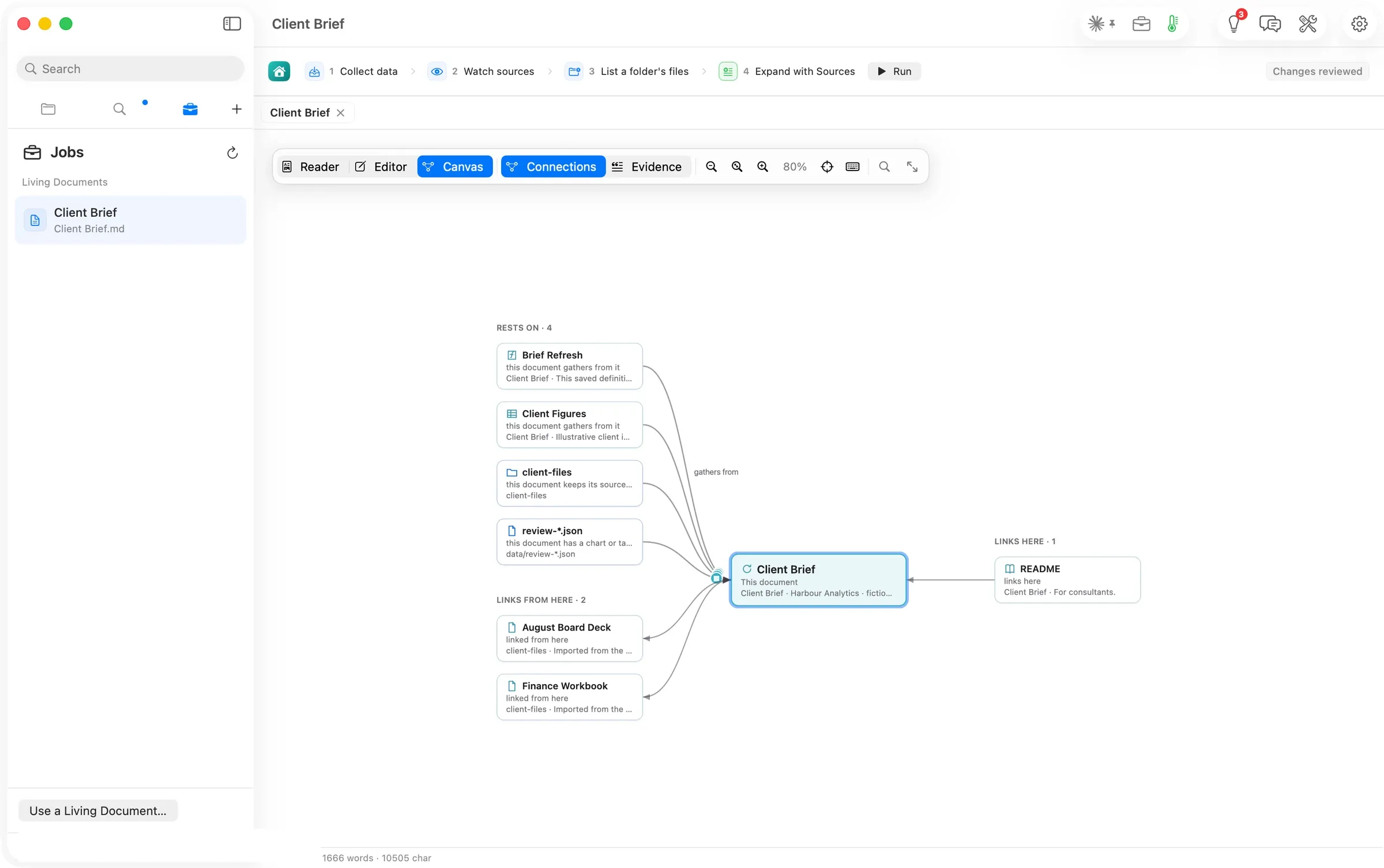
One brief, three ways
Consultants and analysts
Configure Jobs, ask Flow Chat, then trace the result through Connections, Evidence and History. Two routes to one brief, with sources, time and cost recorded.
- Configure the brief’s Jobs
- Ask Chat to refresh the same section
- Trace the result on the canvas
71 sJobs run to review ready
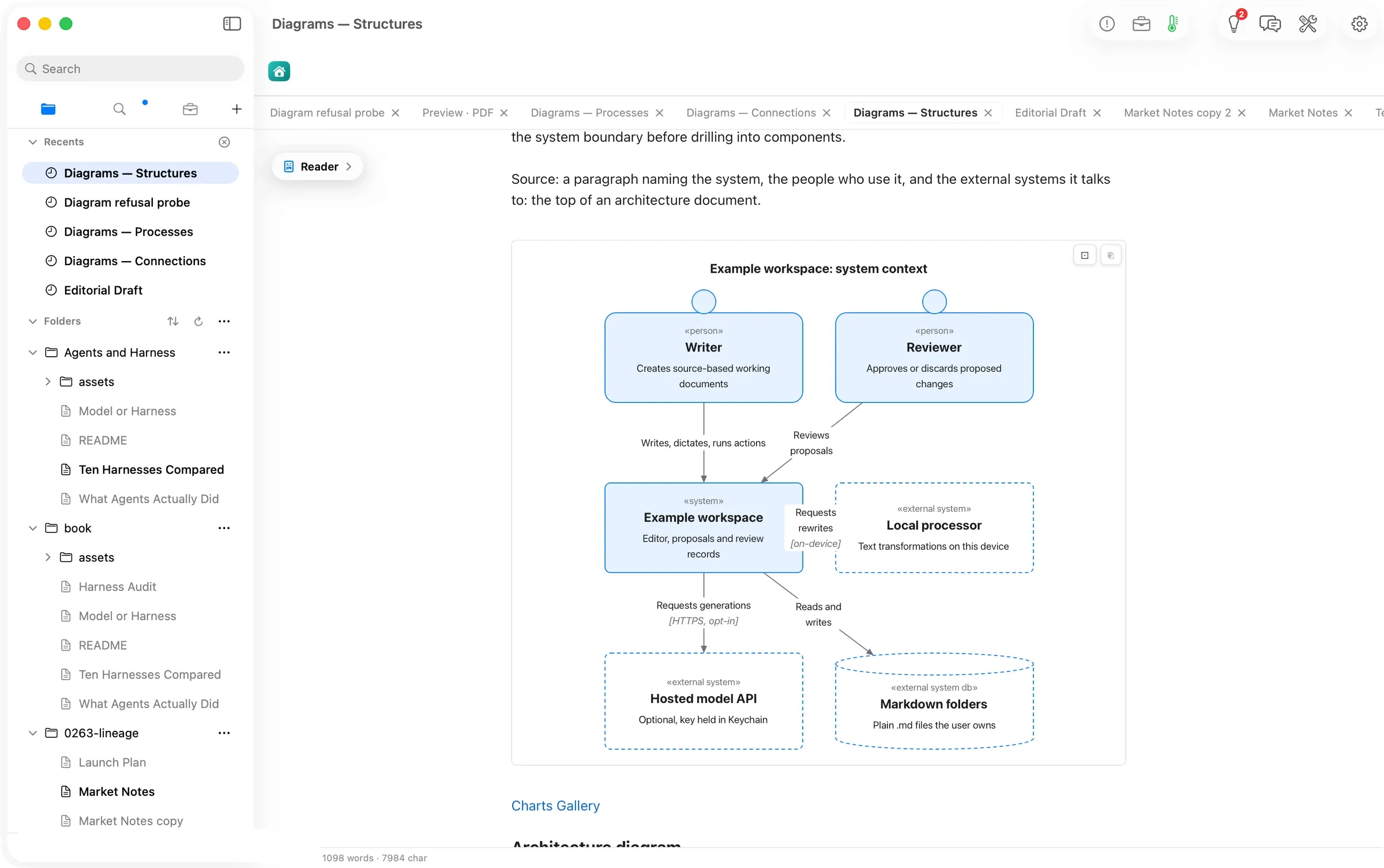
Diagrams that draw anywhere
Writers and technical teams
Write a diagram as text. Read it in either appearance, copy it as a picture, and carry it into the PDF preview.
- Copy a starter from Charts Gallery
- Read it or copy it as a picture
- Preview the drawings in a PDF
20 / 20Guide diagram forms drawn
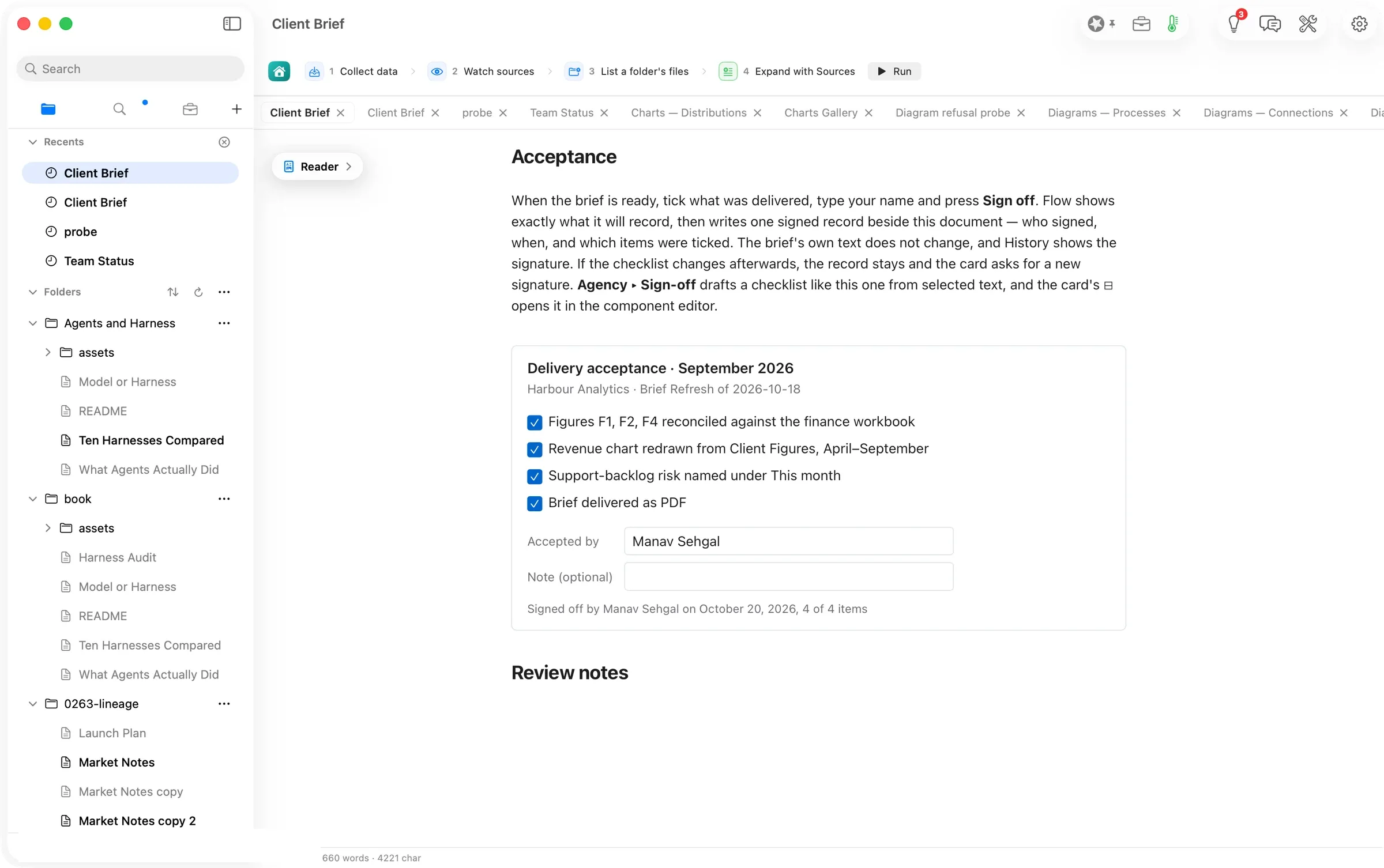
A checklist you can sign, inside the document
Consultants and small agencies
Tick the deliverables, confirm a name and keep an acceptance record beside the document. Draft another checklist from selected text.
- Tick the checklist and type a name
- Confirm what Flow will record
- Find the acceptance in History
1 recordwritten by one sign-off